Importing a state machine
Import reads a JSON file produced by Export and adds what it contains to this shop. Nothing is written until the last step, and nothing is ever deleted.
1. Choose the file
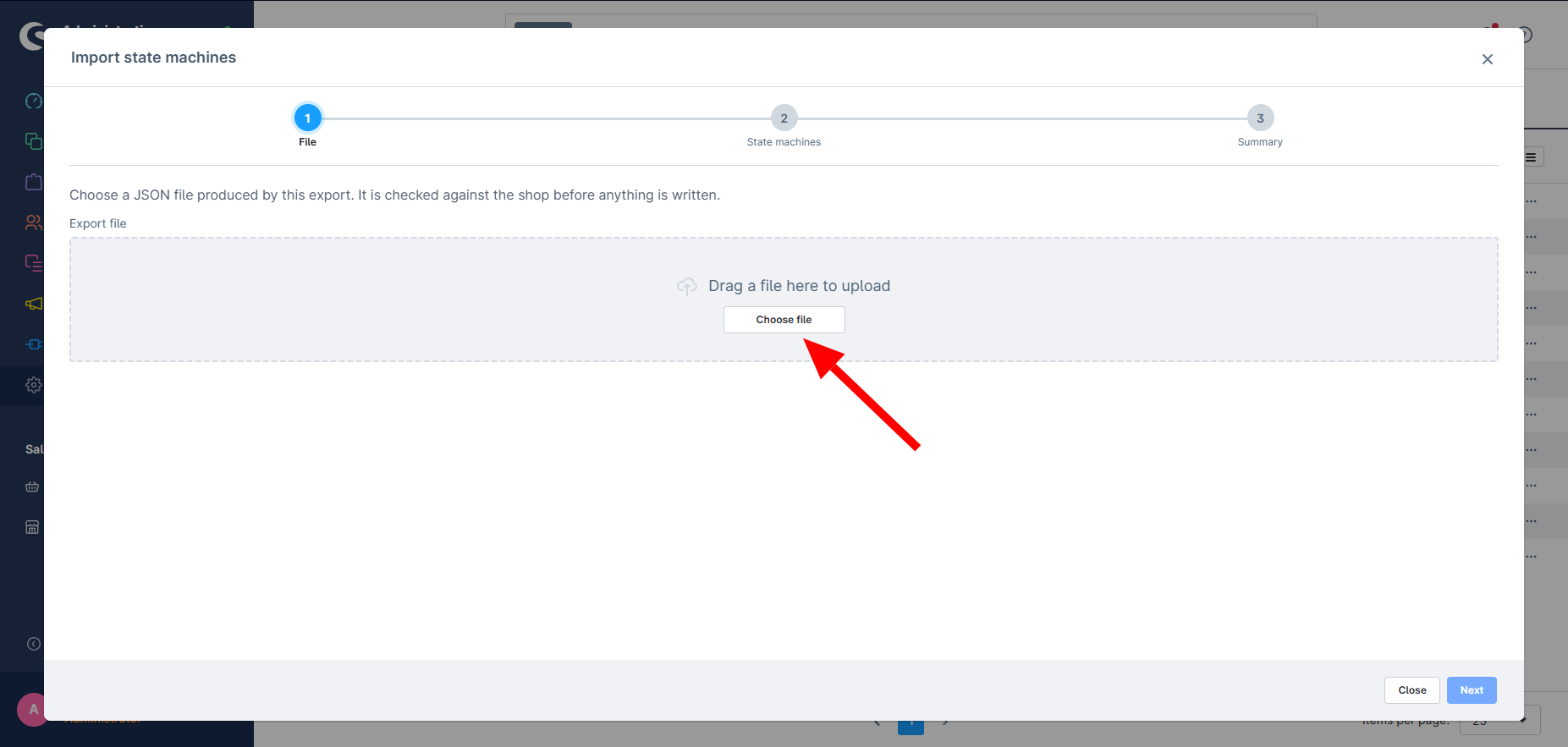
Section titled “1. Choose the file”Open the menu next to Create state machine and pick Import.
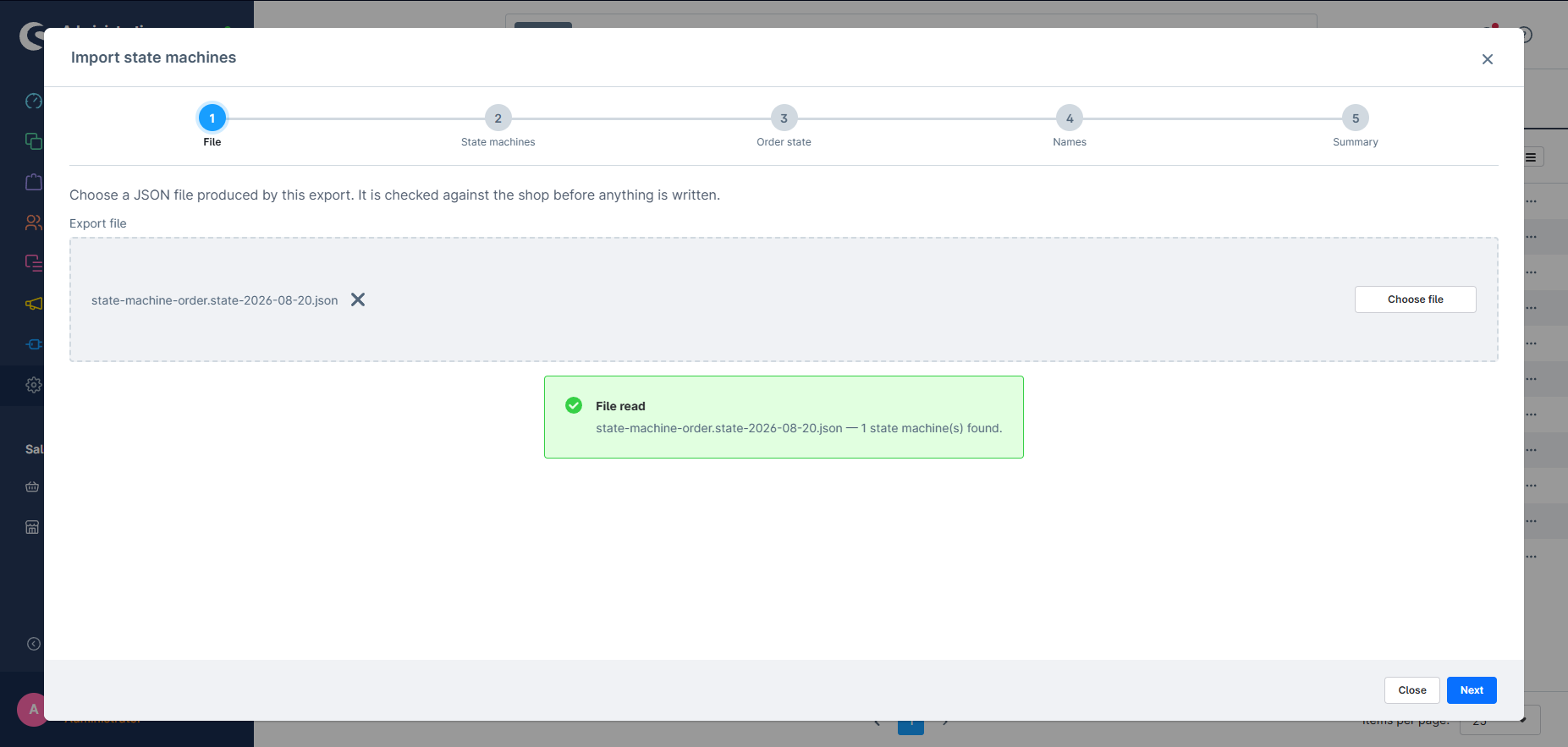
Once the file is read, the shop is compared against it straight away — and the stepper grows to show what that comparison found: one step per machine you are importing, plus a step for names if any are missing.
2. Pick the machines
Section titled “2. Pick the machines”Each machine in the file is listed with what importing it would mean: how many states and transitions would be created, and how many entries are blocked.
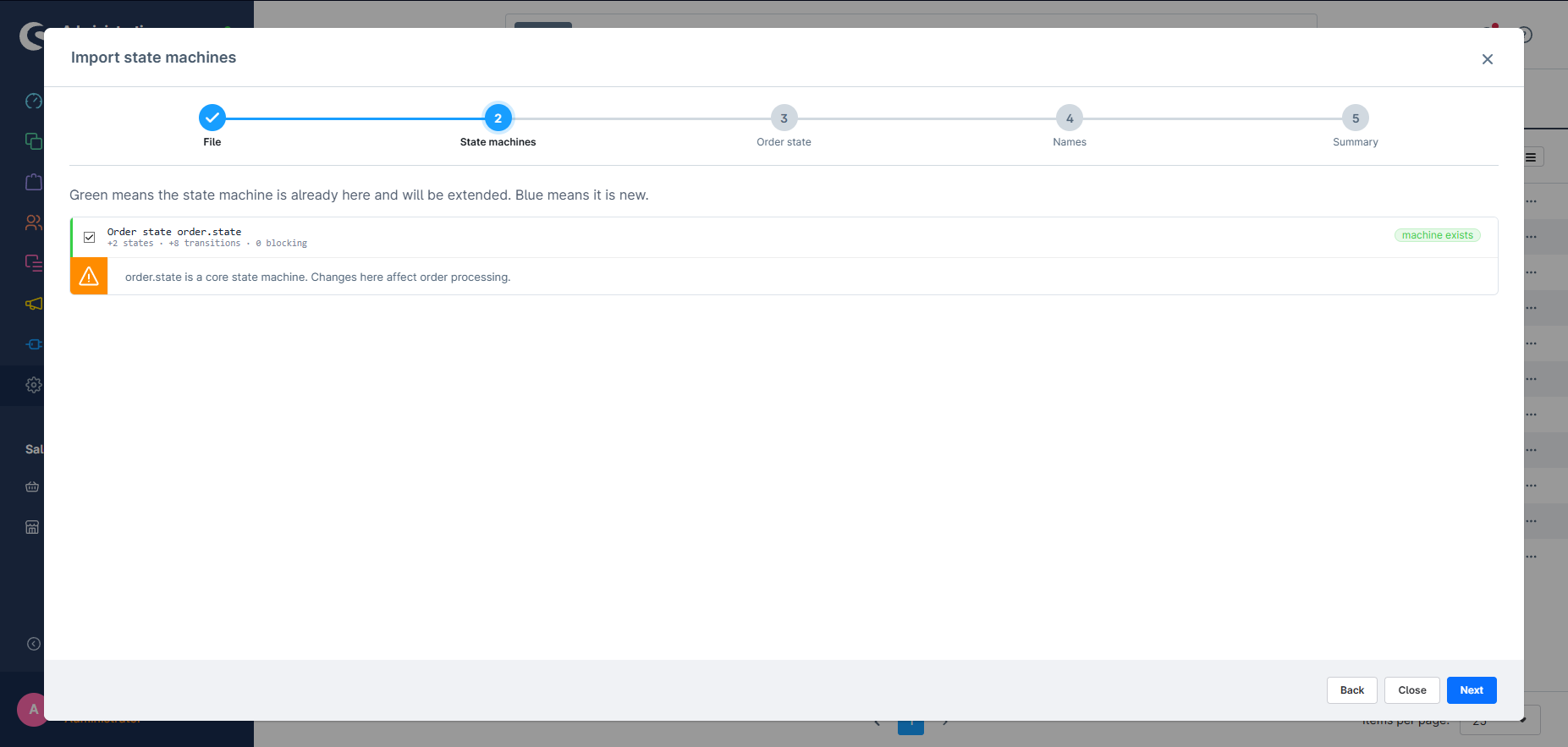
- Green — the machine is already in this shop and will be extended.
- Blue — the machine is new and will be created.
Machines that Shopware itself relies on (order.state, order_transaction.state, order_delivery.state and the capture machines) carry a warning here: changes to them affect order processing. They can still be imported — see Core state machines.
3. Review each machine
Section titled “3. Review each machine”Every selected machine gets its own step, showing exactly what the import would do to it.
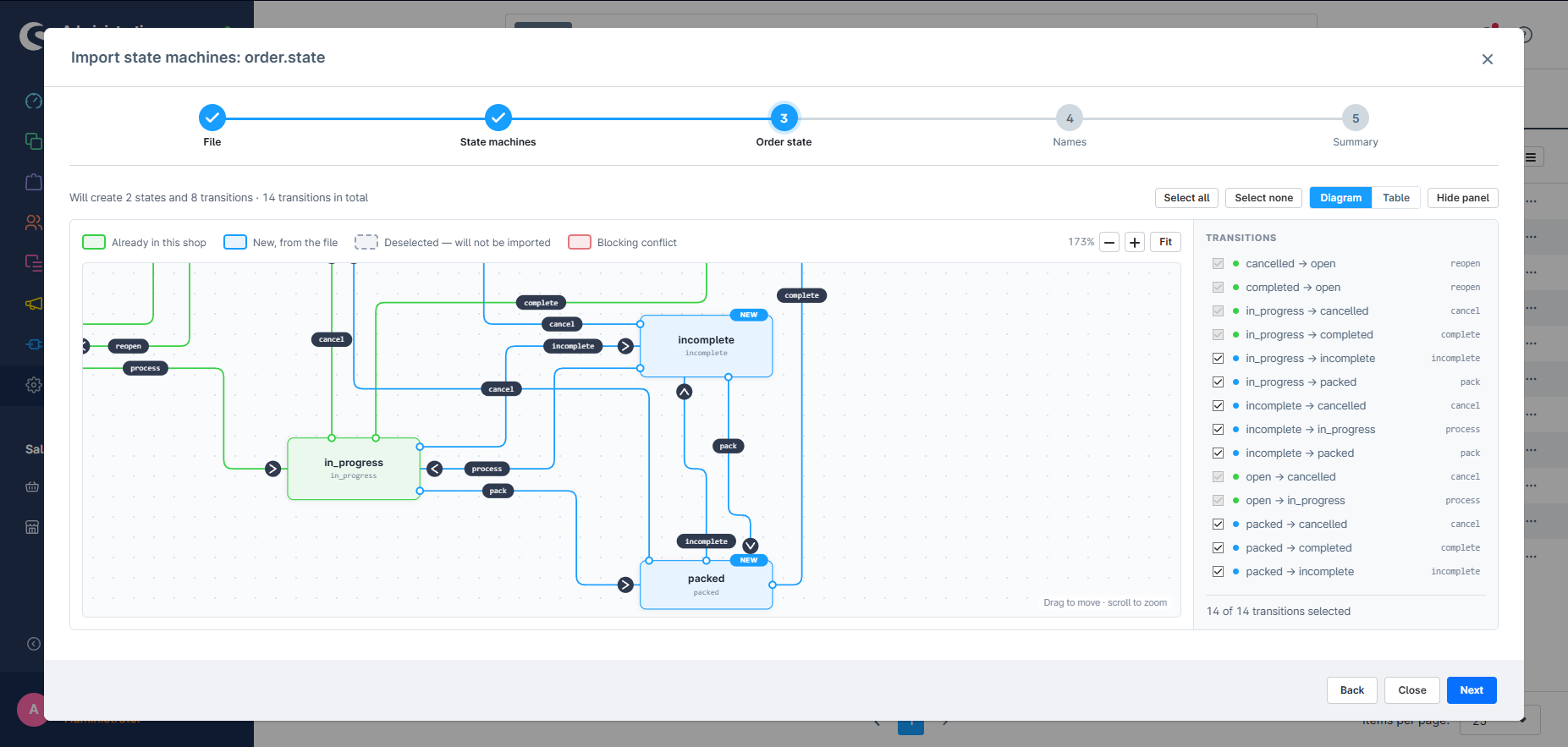
The diagram uses the same colours as the list:
| Colour | Meaning |
|---|---|
| Green | Already in this shop — it will be left as it is |
| Blue | New, from the file — it will be created |
| Dashed grey | Deselected — it will not be imported |
| Red | Blocking conflict — has to be resolved before continuing |
Untick anything you do not want. Clicking a state or an action label on the diagram toggles it, exactly like the checkboxes in the panel — and unticking a state greys out the transitions that depend on it, since a transition needs both of its ends.
Use Table to swap the diagram for a full-width list, Hide panel to give the diagram the whole width, and the zoom controls or Fit to frame a large machine. Drag anywhere on the canvas to move it.
Conflicts found by the comparison are listed on this step, together with the choice of how to resolve them — for example whether an existing name is kept or replaced.
4. Fill in missing names
Section titled “4. Fill in missing names”Shopware requires a name in the shop’s default language for everything it stores. If the file does not carry one, the wizard asks for it here, and will not let you continue until every marked field is filled.
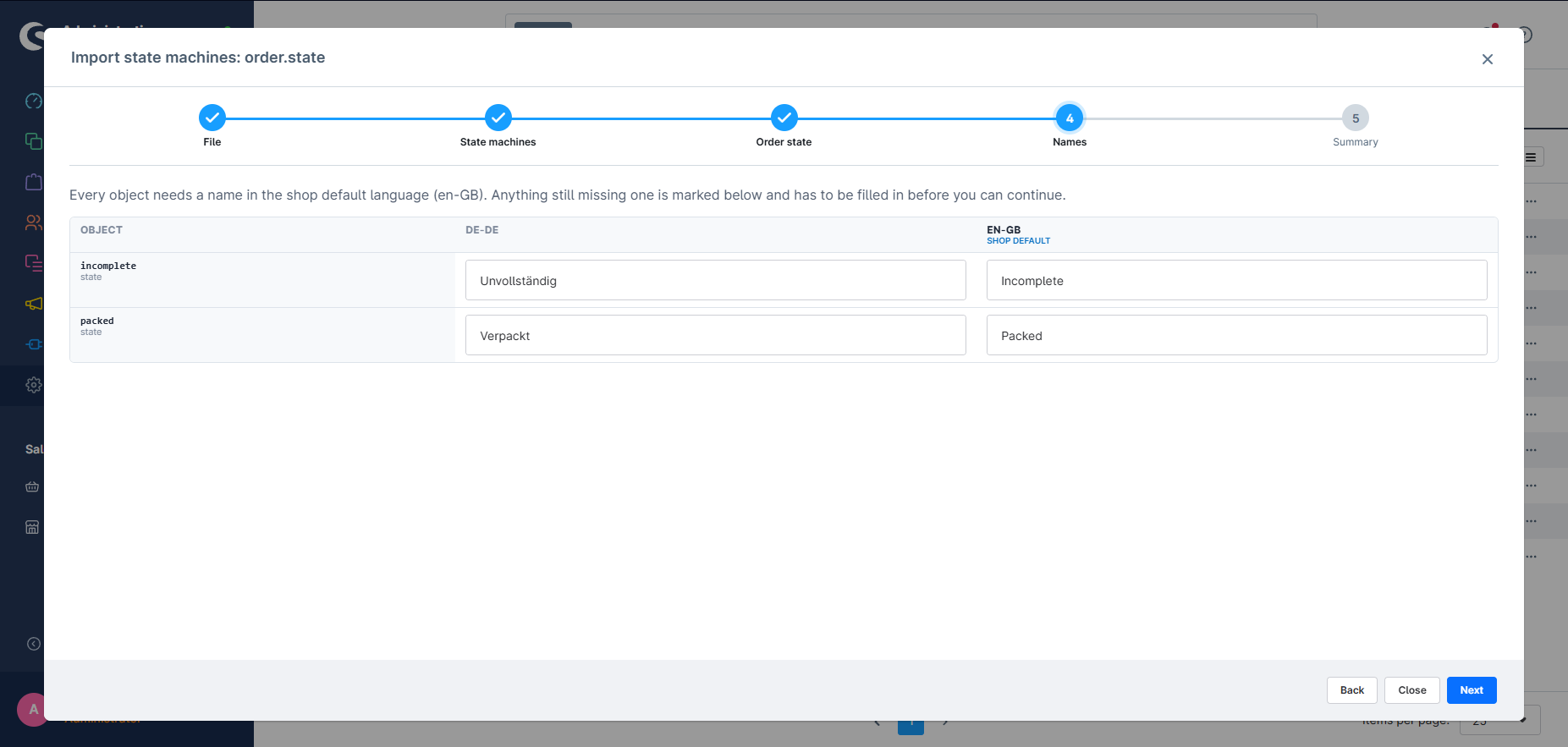
Only objects that are about to be created appear here. Anything the shop already has keeps the name it has — renaming existing objects is a separate decision, made on the conflict in the previous step.
The table has one row per object and one column per language of your shop. Every field is editable, so this is also where you set a name the file never carried.
What happens when a name is missing
Section titled “What happens when a name is missing”The file was exported from another shop, which may not have the same languages as this one. The rules are:
| In the file | What the wizard does |
|---|---|
| A name in your default language | Fills it in. Nothing to do. |
| No name in your default language, but a name in some other language | Fills the field with that name as a suggestion, so you only confirm or overwrite it. The step cannot be left while the field is empty. |
| No name at all in any language | The field stays empty and is marked. Type one — the step cannot be left until you do. |
| Nothing for one of your other languages | The field stays empty. That is allowed: the object is created without a name in that language. |
Only the default language is required, because Shopware refuses to store a translatable record without it. The other columns are optional and can be filled later on the object itself.
If the import creates nothing that needs a name, the step does not appear at all.
5. Confirm
Section titled “5. Confirm”The last step lists what will be written.
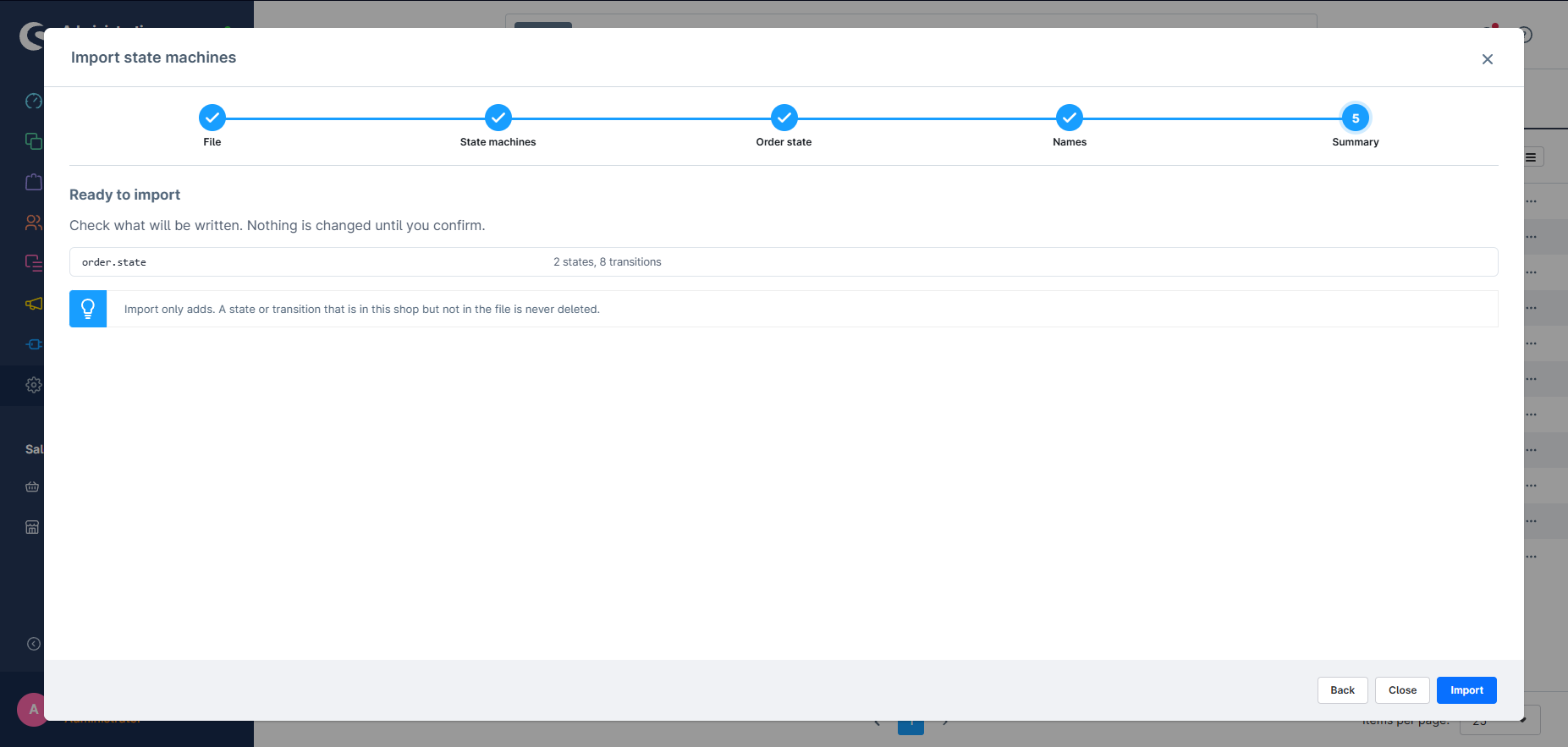
Press Import and the wizard writes it. Each machine is written in its own transaction, so a problem with one does not leave the others half-finished. The shop is compared against the file once more, on the server, immediately before writing — if something changed in the meantime, the import stops instead of writing over it.
What import never does
Section titled “What import never does”- It never deletes. A state or transition that exists in this shop but not in the file stays.
- It never overwrites a name unless you explicitly chose to on the conflict.
- It never moves an order. Only the definition of the machine changes; entities keep the state they are in.
A consequence worth knowing: importing the same file twice makes no changes the second time.