See everything
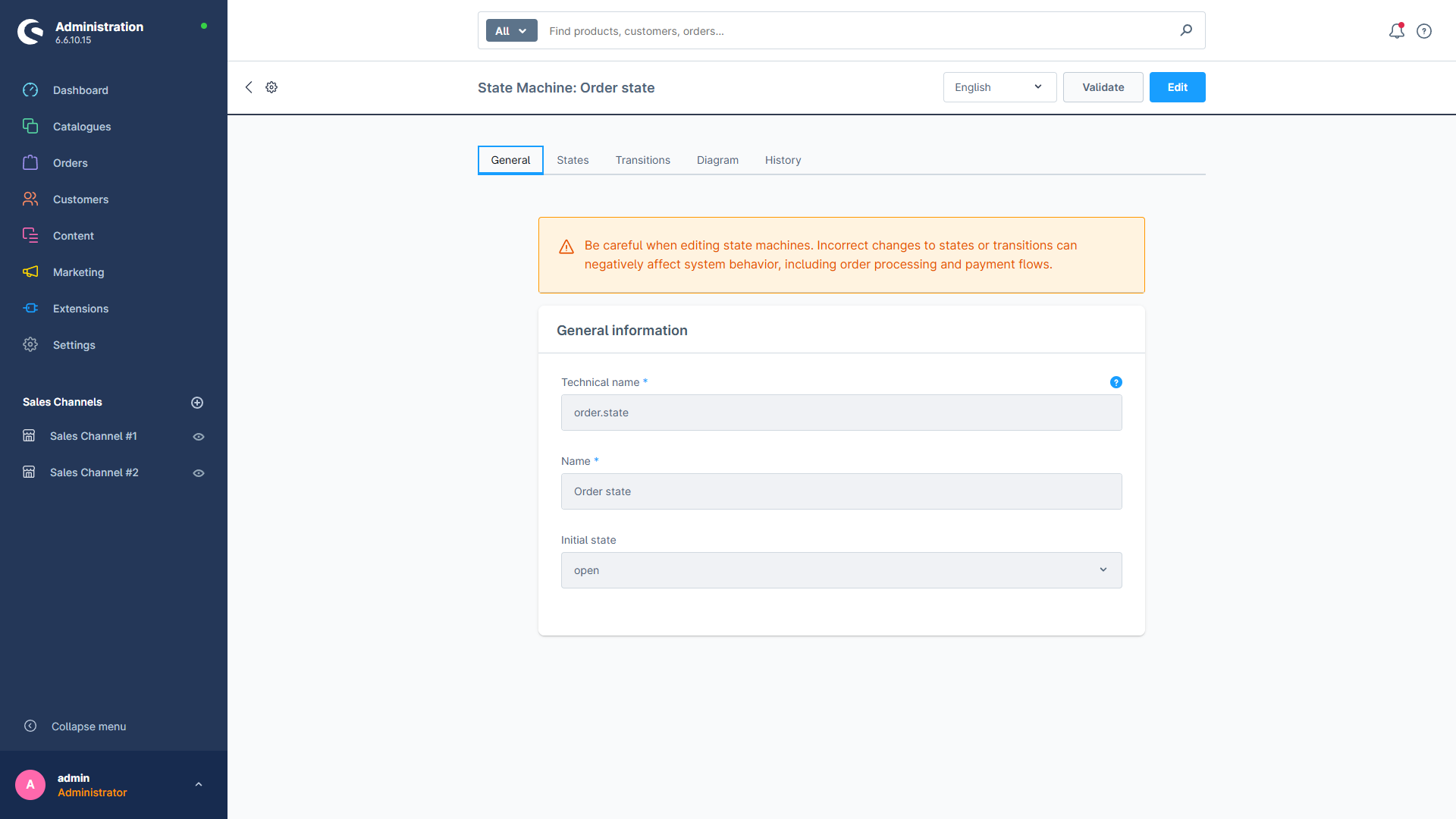
Every state machine in one list, each opening into a five-tab detail view.
Shopware runs its order, payment and delivery statuses on state machines — a set of states and the allowed transitions between them. Out of the box there is no screen for looking at or changing them: they live only in the database and can normally be touched only through code migrations.
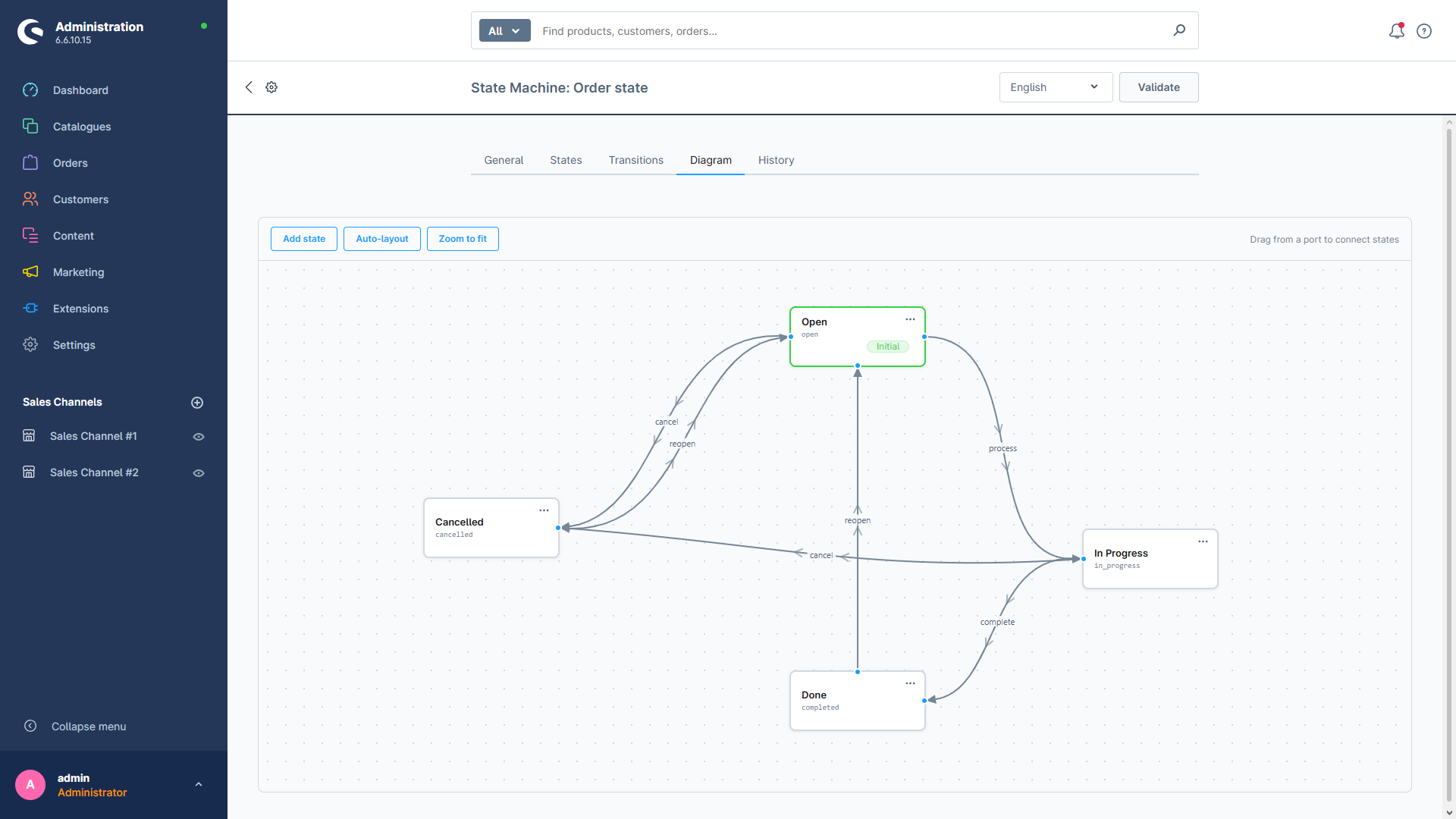
State Machine Manager adds that missing screen. It gives you a full admin module to view, create and edit state machines, their states and their transitions — including a visual diagram you can rearrange with drag and drop.
See everything
Every state machine in one list, each opening into a five-tab detail view.
Visual diagram
Drag states around the canvas and draw transitions from port to port.
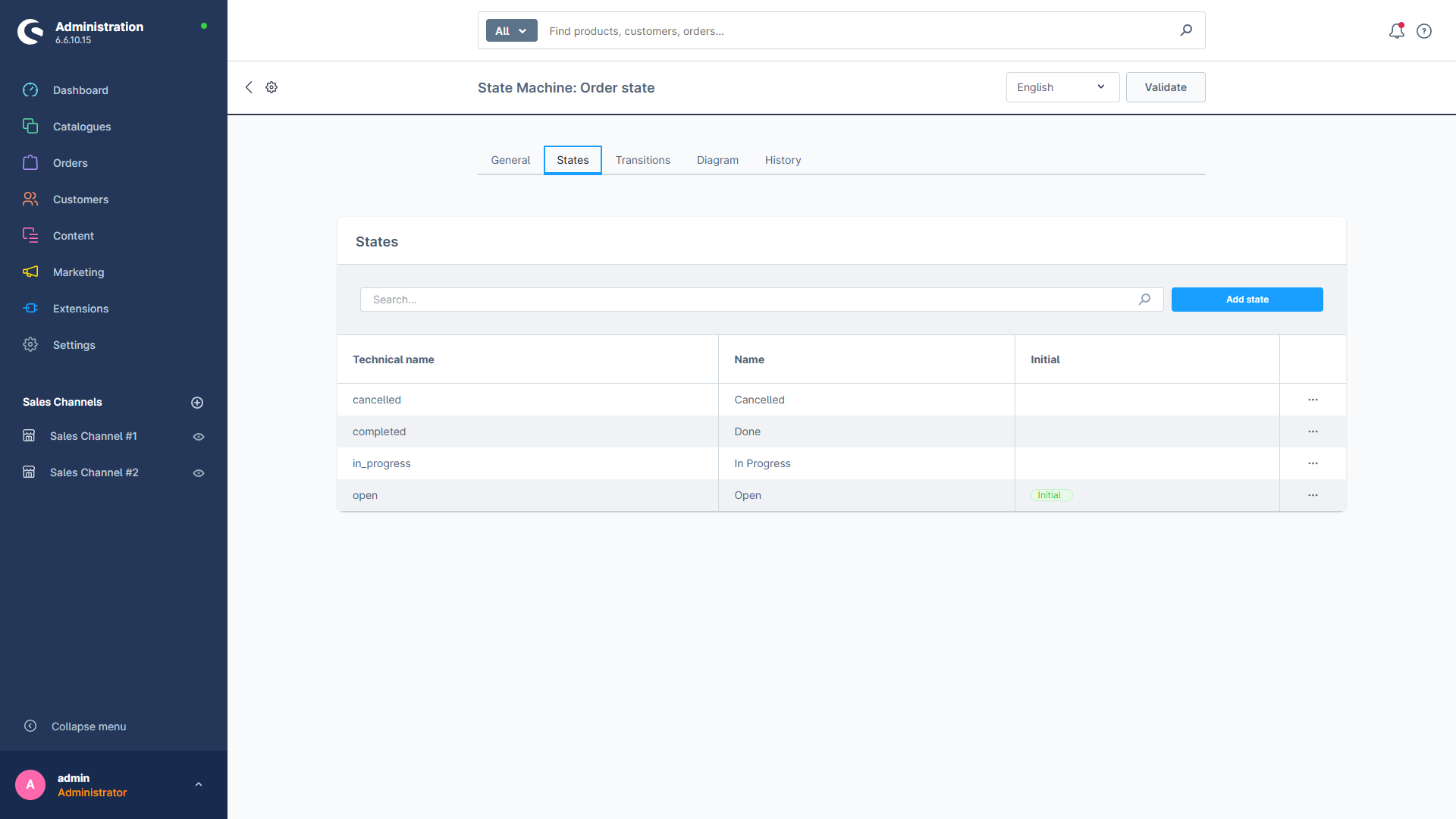
States
Add, rename and remove states, and pick which one a machine starts in.
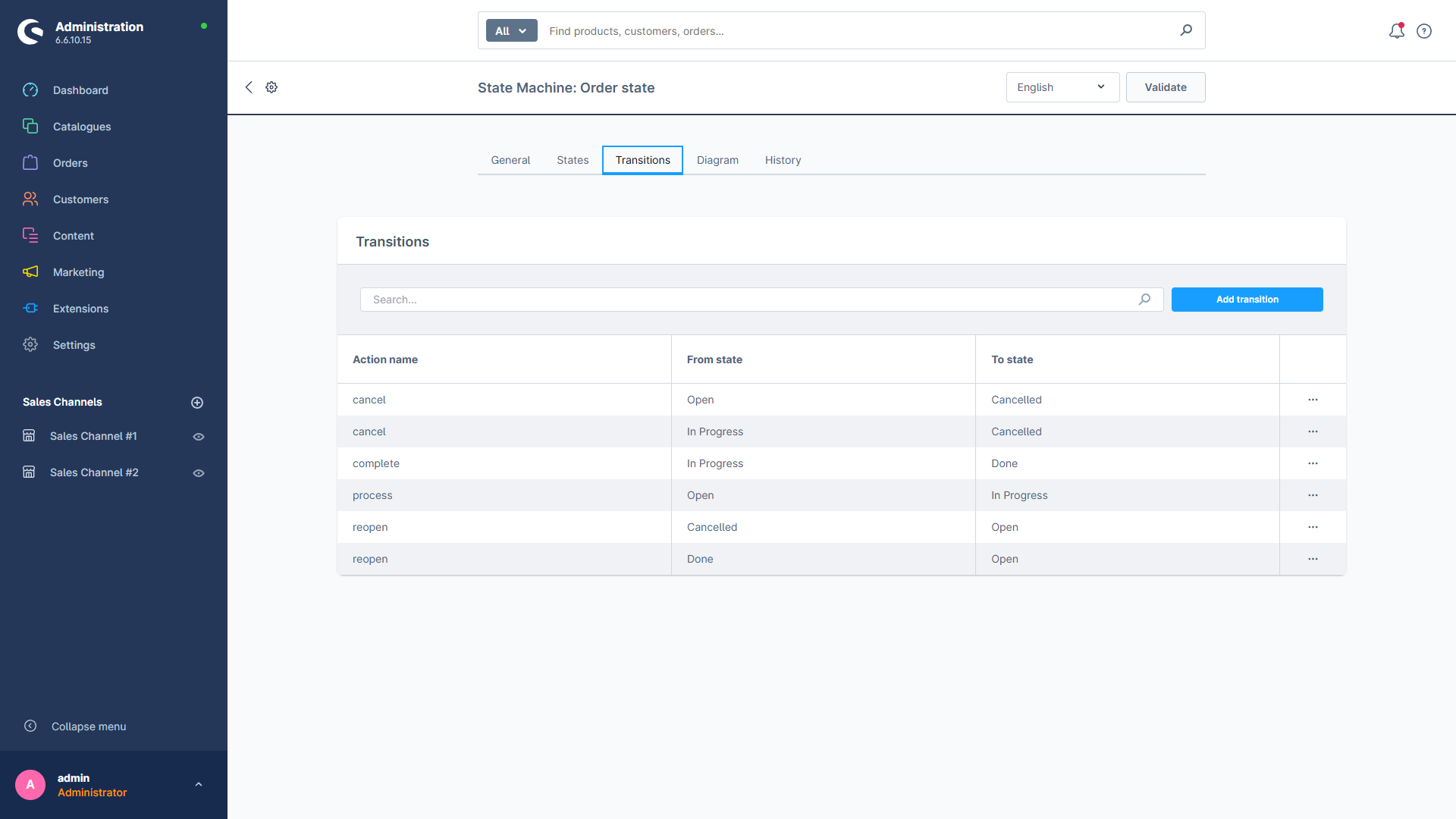
Transitions
Define which action moves an entity from one state to another.
Validation
Spot a missing initial state, dead ends and duplicate transitions before they cause trouble.
Safe by default
Core statuses are protected, and anything still in use cannot be deleted.
Core Shopware state machines stay protected, and every deletion is checked against real usage first — so you can explore freely.