Exporting a state machine
Export writes state machines to a JSON file. Use it to move a configuration from a staging shop to production, to keep a copy before making changes, or to hand a setup to someone else.
Starting an export
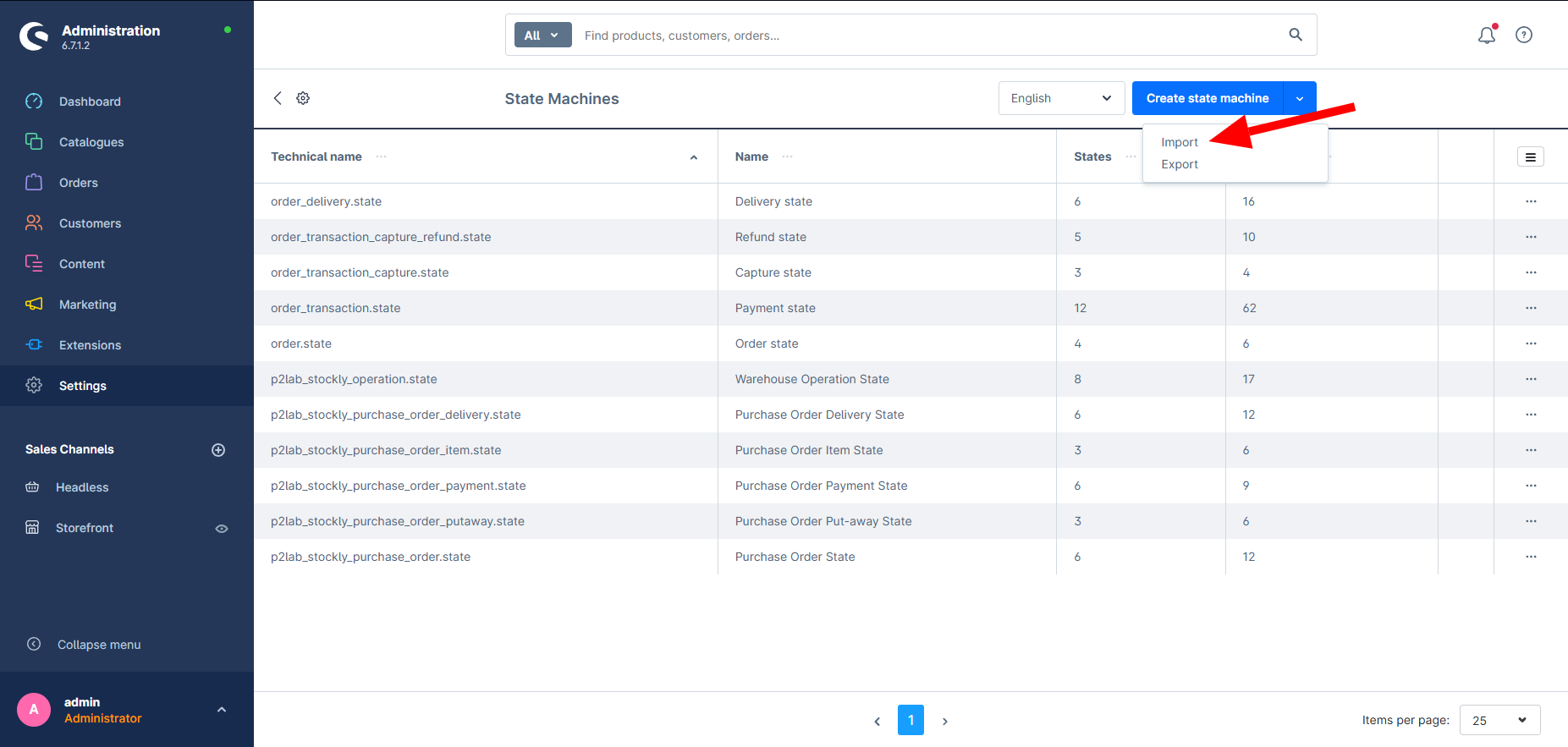
Section titled “Starting an export”Open the State Machines list. Next to Create state machine there is a chevron; the menu behind it holds Import and Export.
Choosing what to export
Section titled “Choosing what to export”The wizard has three parts:
- State machines — tick the machines to export.
- One step per machine — every state and transition is ticked by default, so you only untick what should stay behind. Unticking a state also disables the transitions that need it, since a transition without both of its ends cannot exist.
- Download — the last step writes the file.
The file is named after what it carries, for example state-machine-order.state-2026-08-20.json.
What ends up in the file
Section titled “What ends up in the file”- Machines, states and transitions, identified by their technical names — never by internal IDs, which differ between shops.
- Names in every language of your shop, so the target shop can pick the ones it needs.
- The initial state of each machine.
- Diagram positions, keyed by technical name, so the arrangement survives the move.
A transition is only written when both of its states are in the file. That way an exported file is always valid on its own.