Your first pick
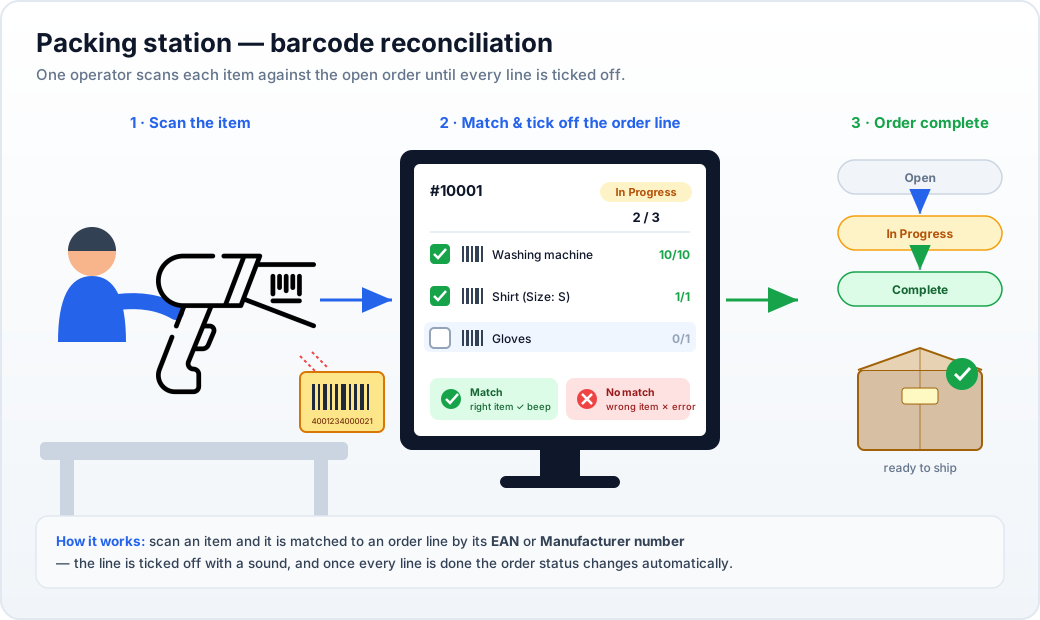
This page follows one operator through a real shift: select a batch of orders, print a single warehouse pick list, collect the goods, then pack each parcel at the station while scanning every item against its order. When the last line of an order is scanned, the order changes state automatically — so every box that leaves the station is confirmed complete and correct by barcode.
1. Select the orders
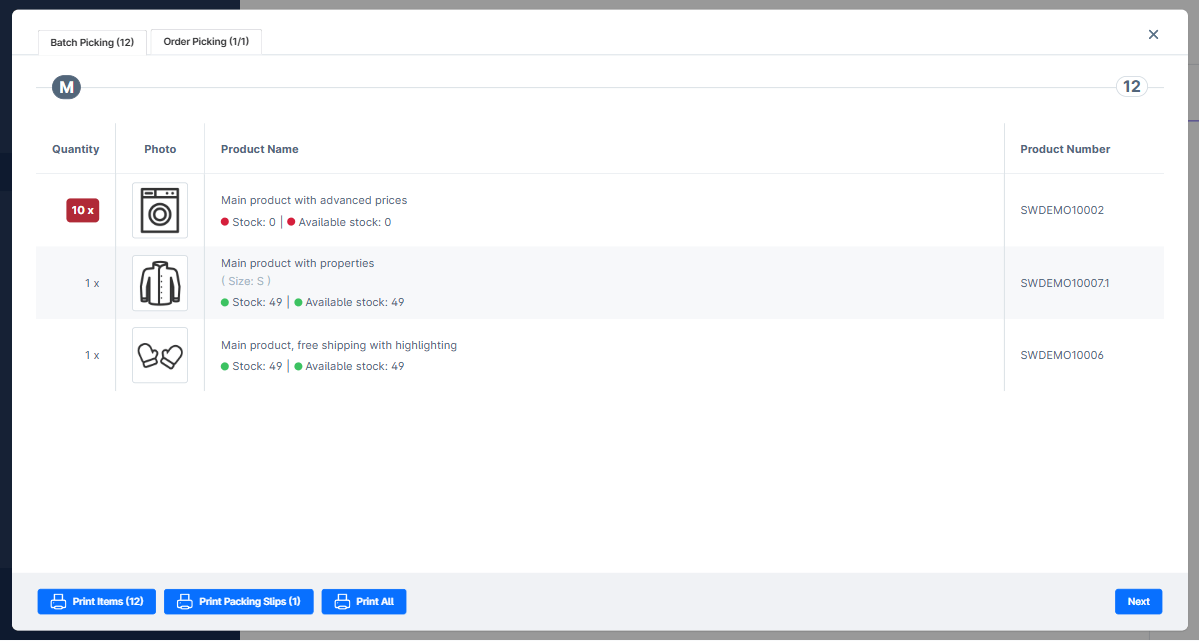
Section titled “1. Select the orders”Go to Orders → Overview and tick the orders you want to pack in this wave. A toolbar appears above the list — click Order Picking.
The modal opens on the Batch Picking tab: one deduplicated list of every item across all selected orders, with quantities summed.
2. Print the pick list
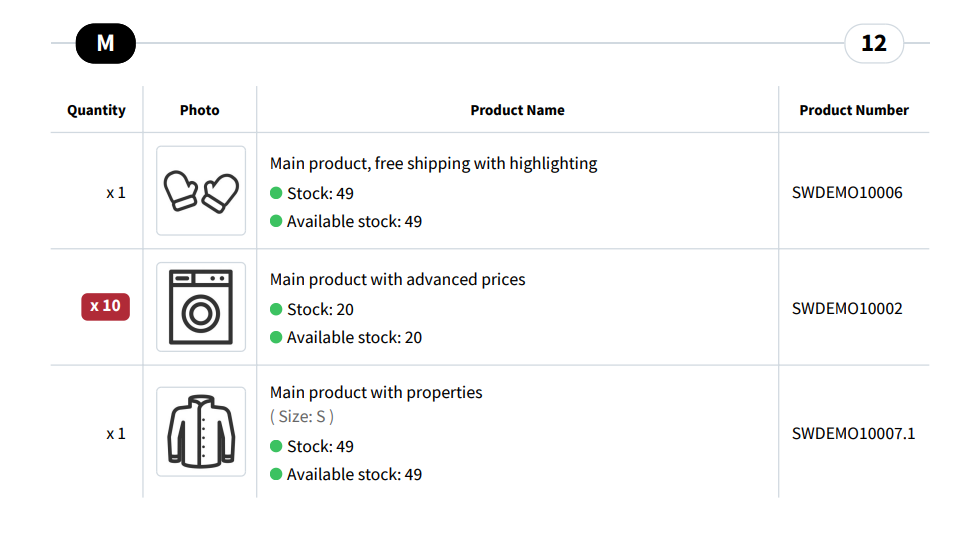
Section titled “2. Print the pick list”On the Batch Picking tab, click Print Items. You get a single PDF that lists every product to fetch from the warehouse, with total quantities and product numbers — one walk covers the whole wave.
3. Collect the goods, then come back
Section titled “3. Collect the goods, then come back”Take the pick list to the warehouse, collect everything, and return to the packing station. Switch to the Order Picking tab (or click Next) — the modal now shows the first order on its own, ready to pack.
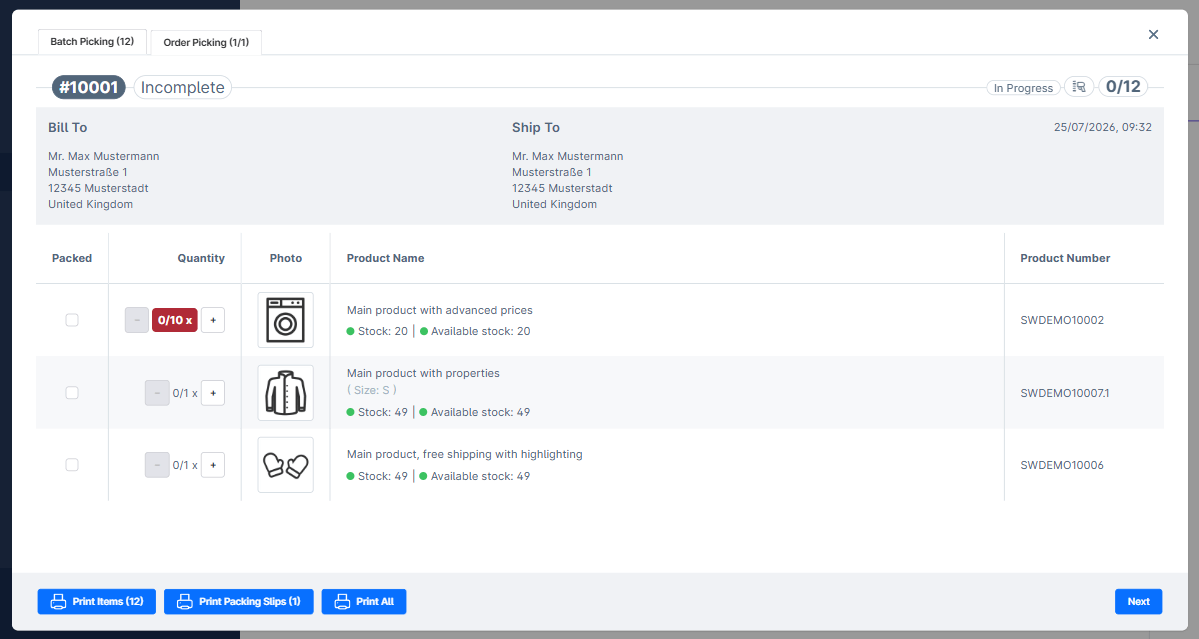
The header shows the order number, an Incomplete / In Progress badge, and a live counter (e.g. 0 / 12). The small scanner icon next to the counter confirms the reader is armed.
4. Pack the first parcel — scan every item
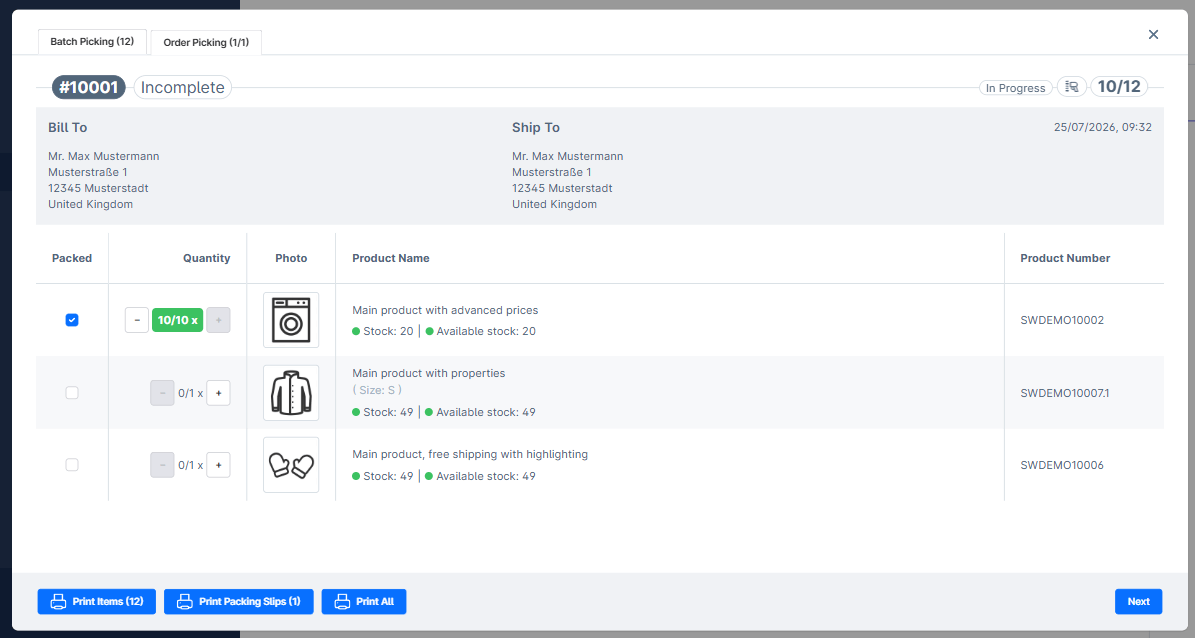
Section titled “4. Pack the first parcel — scan every item”Pick up the box for this order and, as you place each product inside, scan its barcode. The matching line is found by EAN (or Manufacturer number), ticked off, and a confirmation sound plays.
- Right item → the line turns green, the counter climbs, a success beep plays.
- Wrong or unknown item → an error sound and an on-screen message. Nothing is ticked, so you catch the mistake before it goes in the box.
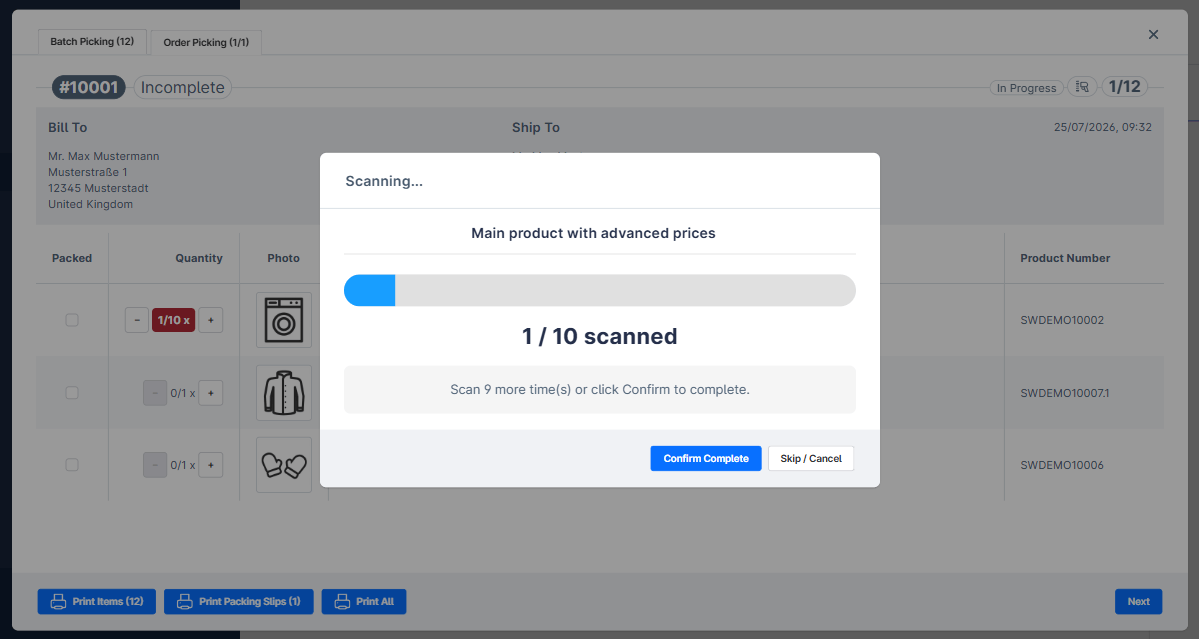
With Quantity scan mode, a multi-unit line opens a progress dialog so you scan each unit — the line completes only when the full count is reached.
A finished line shows its full count in green with the Packed box checked.
5. Order complete → status changes
Section titled “5. Order complete → status changes”When the last line of the order is scanned, the badge flips to Complete and the plugin offers to move the order to its final state.
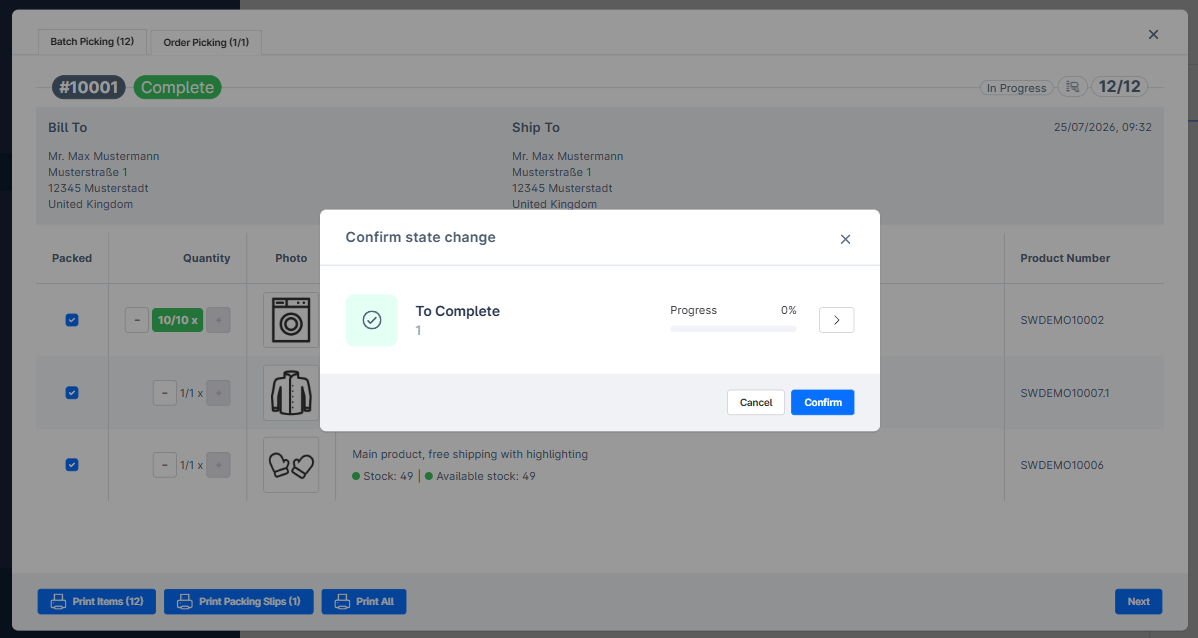
- With Order completion behavior set to manual, you confirm the state change here.
- With auto, the order advances on its own after the last scan.
Seal the box, drop in the packing slip, and it is ready to ship.
6. Move to the next order
Section titled “6. Move to the next order”Click Next (or let auto-advance do it) and the modal shows the next order in the wave. Repeat steps 4–5 for each parcel until the wave is done.
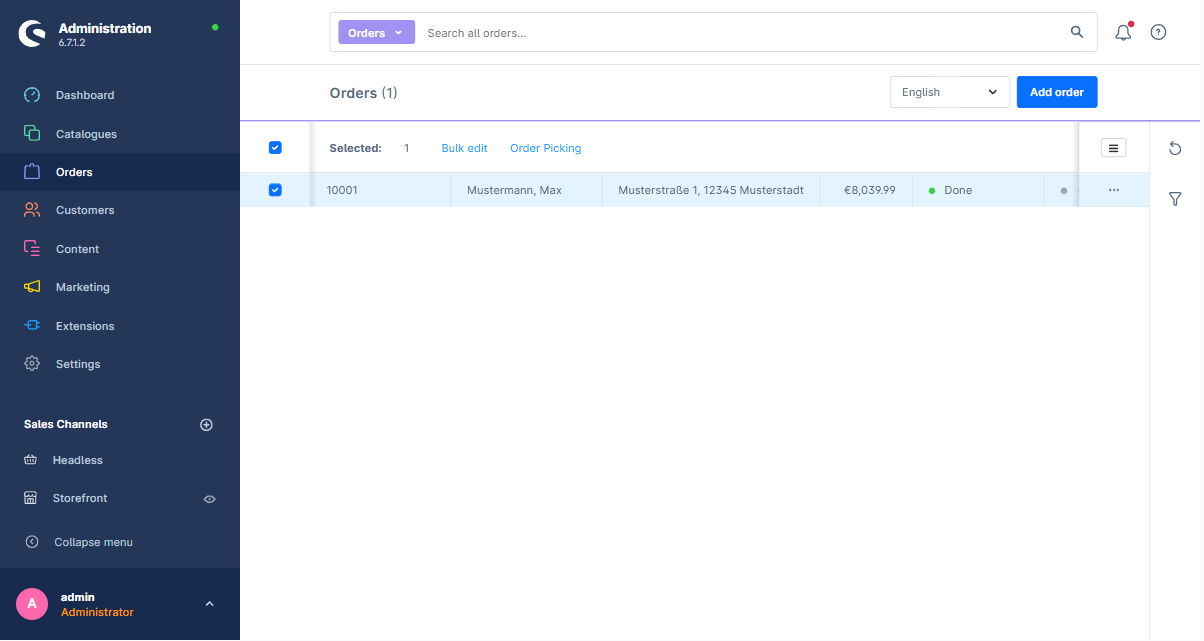
Back on the order list, every packed order now carries its new status — here, Done.
Why this gives you certainty
Section titled “Why this gives you certainty”Because a line can only be ticked off by a matching EAN, a parcel cannot be marked complete unless the right products were physically scanned into it. Single scan confirms the product is present; Quantity scan confirms the correct count of every line. Either way, no order reaches Complete with the wrong or missing goods inside.
Where to go next
Section titled “Where to go next”- Order Picking overview — single-order workflow in depth.
- Batch Picking overview — the item-first pick list.
- Barcode scanner — scanner modes, sounds, and matching in detail.
- Order state transitions — what the Next button does to the state machine.