Installation
Requirements
Section titled “Requirements”| Requirement | Detail |
|---|---|
| Shopware | 6.7 with the Administration and the Storefront |
| Sales channel | a channel of the Storefront type; the setup guide and the skins work with Storefront channels only |
| Domain of the channel | for the live preview, a domain of the channel on the same address as the administration; on another domain the preview cannot show the draft |
| Scheduled tasks | the daily cleanup of old published versions runs as a scheduled task, so it needs the shop’s scheduled task runner and queue worker; it is Nova’s only background job |
The import and the publication of a starter kit do not need a background job. The import page carries them out in steps of a few seconds while it is open, and every step is saved at once. A closed page or a broken connection leaves the import at the step it reached; Resume in Content → Nova → Skins → Starter kits → Import log continues it from that step.
Installing the plugin
Section titled “Installing the plugin”-
Upload the plugin under Extensions → My extensions → Upload extension, or place it in the plugin directory of the shop.
-
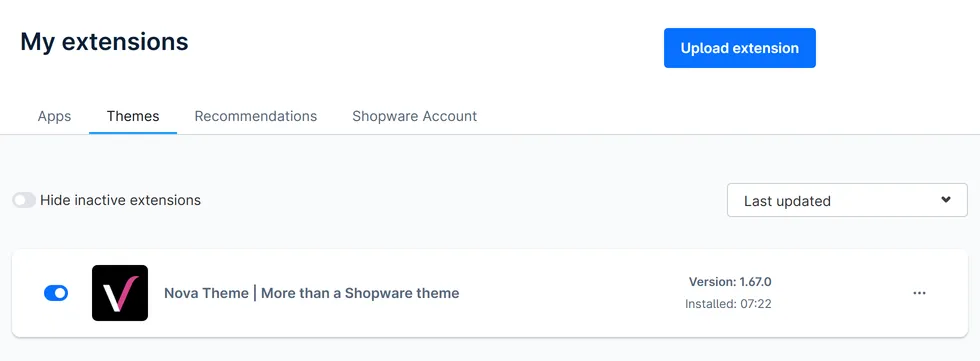
In the list under Extensions → My extensions, open the Themes tab (Nova is a theme, so the Apps tab does not list it) and click Install on the Nova card. The administration installs and activates the plugin in one step, clears the cache and reloads; the switch on the card shows it active.
-
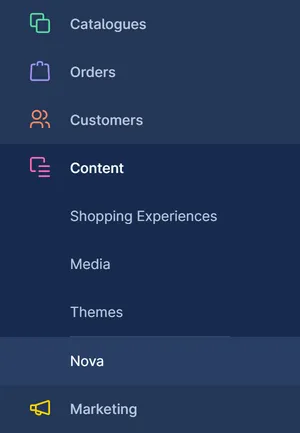
Nova appears under Content.
From the command line:
bin/console plugin:refreshbin/console plugin:install --activate P2LabNovabin/console cache:clearWithout --activate, plugin:install only installs the plugin; it is activated afterwards with
bin/console plugin:activate P2LabNova or the switch on its card.
What is created at installation and activation
Section titled “What is created at installation and activation”The installation creates the plugin’s tables and writes the defaults of the settings in Content → Nova → System. No sales channel changes at this point.
The activation creates the skins delivered with Nova under Base. Only their drafts are written, so the shop shows nothing of them until a skin is assigned to a channel and published. A delivered skin changed in the shop remains as it is; a delivered skin that was deleted is created again at the next activation or update of the plugin.
If sales channels already use the Nova theme at the moment of activation, they receive Nova’s default documents at once, as described in the next section.
Choosing the Nova theme for a sales channel
Section titled “Choosing the Nova theme for a sales channel”The theme is chosen on the channel itself, as for every Shopware theme:
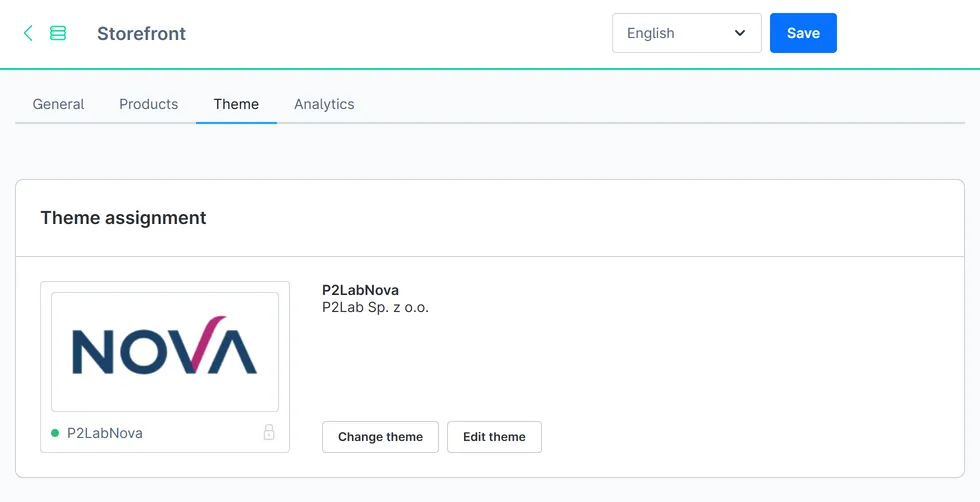
- Open Sales Channels → channel → Theme.
- Change the theme to P2LabNova and save the channel.
From the command line the core command bin/console theme:change asks for the channel and the
theme.
When a channel receives the Nova theme, the shop is given a published default header, footer, product page template and quick view, unless it already has a published default of that kind. Each of them is created from Nova’s template, published and made the default of its place, so the channel shows Nova’s layout from the first page view. A published default that already exists remains and is used.
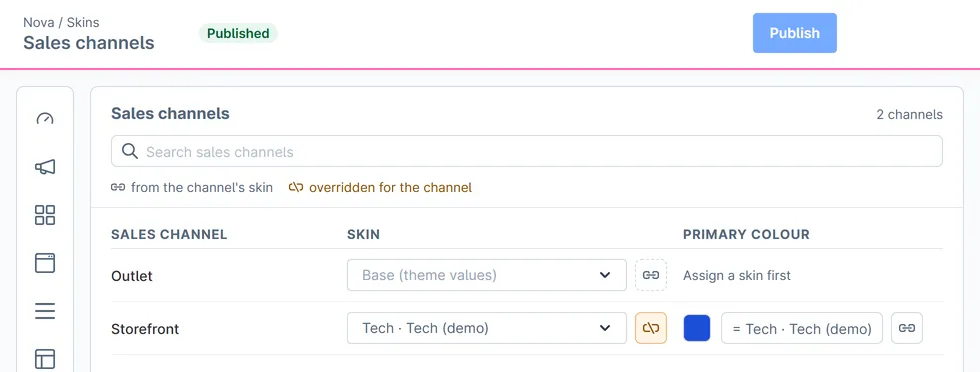
A channel with the Nova theme and without an assigned skin shows the values of Base (in the channel list of the skins: Base (theme values)). A skin is assigned under Content → Nova → Skins → Sales channels and shown after Publish. → Skins and publishing
Privileges
Section titled “Privileges”Nova adds the permission group Nova theme to the roles under Settings → System → Users & permissions → Roles → role. It has two levels:
- View allows opening Content → Nova and reading the skins, the documents and their assignments.
- Edit additionally allows saving, publishing, assigning, importing and deleting. Publishing belongs to this level and has no level of its own.
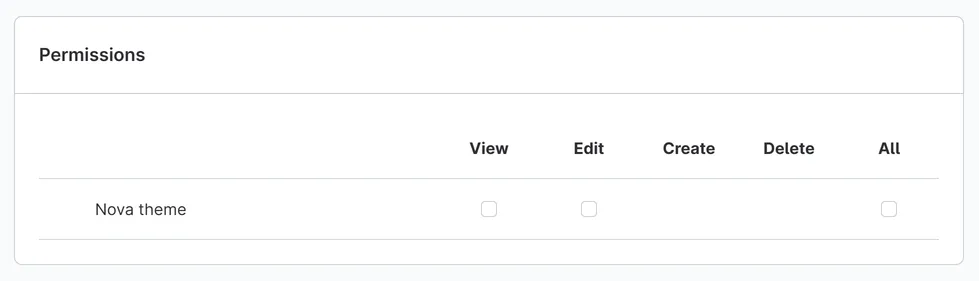
A user without the View level does not see Nova under Content. A user with the View level alone sees the screens of Nova with the saving and publishing buttons disabled; the pages for adding a physical store or a comparison set open only with the Edit level. The System tabs Most popular brands and Retention follow the core’s privilege for the system settings instead of the Nova levels.
Some actions of Nova also write records of the core and need the core’s privileges for them: the images of a starter kit need the Media privileges, and the brand page wizard needs the privileges for categories and dynamic product groups.
Updating
Section titled “Updating”An update writes the defaults of settings added since, creates a delivered skin that is missing, and gives channels with the Nova theme the default documents they lack. Clear the cache afterwards.
bin/console plugin:update P2LabNovabin/console cache:clearUninstalling
Section titled “Uninstalling”The uninstall dialog of the extension has the switch Remove all app data permanently.
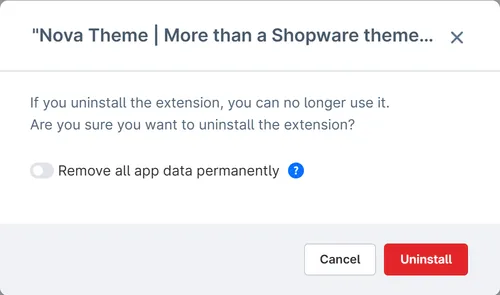
Uninstalling with the switch off keeps the data and changes nothing in the database. Uninstalling with it on removes everything the plugin added to the shop:
- its tables with the skins, documents, assignments, store details and kit imports,
- the drafts of the documents,
- the settings of Content → Nova → System,
- Nova’s elements and blocks in the layouts of Shopping Experiences, together with sections and blocks of the layouts that contained only Nova’s elements,
- Nova’s settings on the core’s elements in layouts, categories, products and landing pages,
- the demo data of the starter kits, as Remove demo data in the import log removes it: records changed after the import, products in orders, categories that hold other records and records the kit’s layouts still show remain, and so do images used elsewhere in the shop,
- what the Nova screens remember per user (the hidden setup guide, filters and columns of lists),
- the Nova privileges in the roles,
- the Nova folders of the media library,
- the typefaces hosted by the shop, the preview files and the starter kit packages.
The media uploaded in the builders remain in the media library of the shop, without a folder. The layouts imported with a kit and the categories and dynamic product groups made by the brand page wizard remain too: they are records of the shop, edited in its own modules.
Next step
Section titled “Next step”The Nova rail: how the editor is laid out.