Design visually
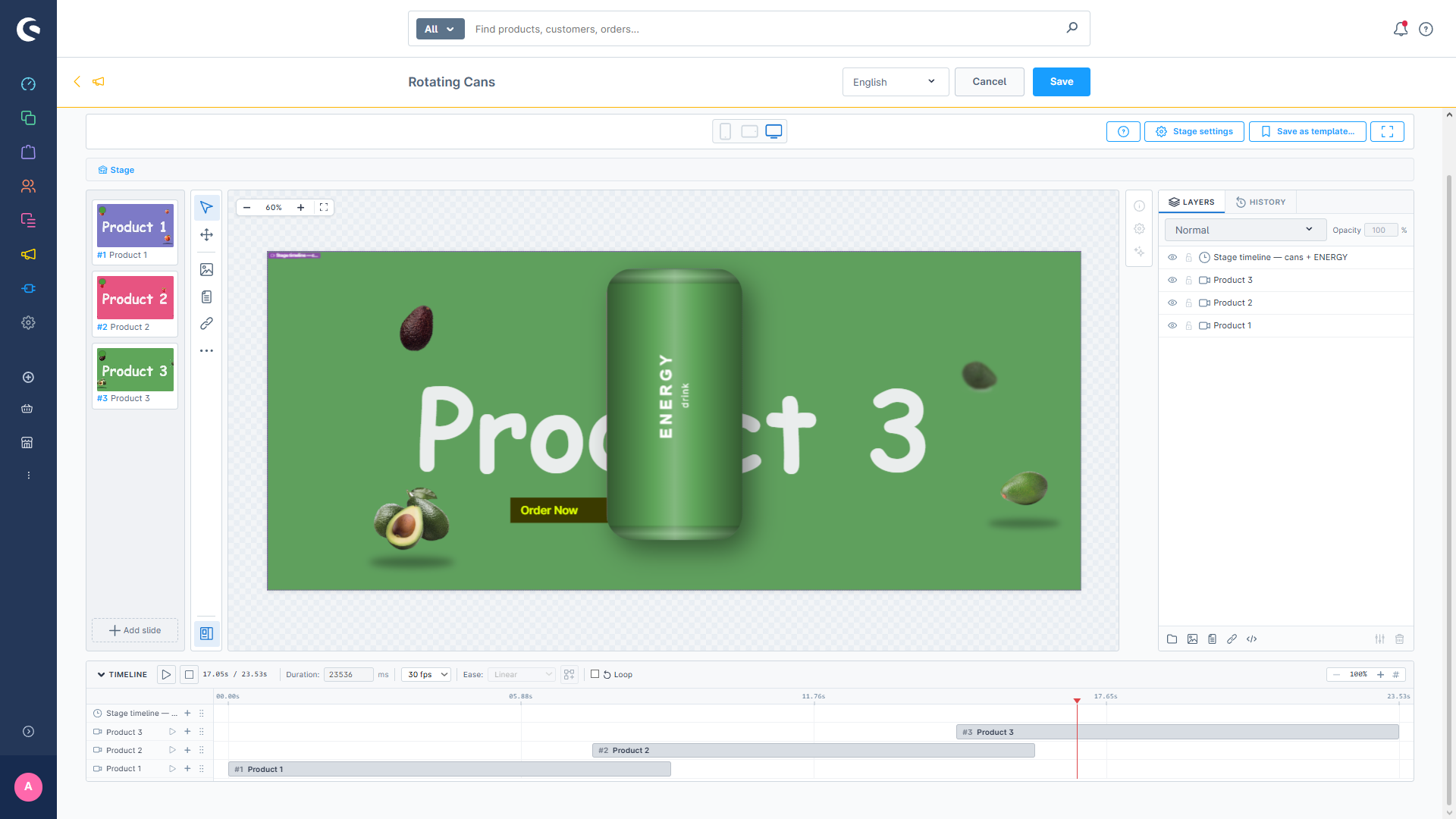
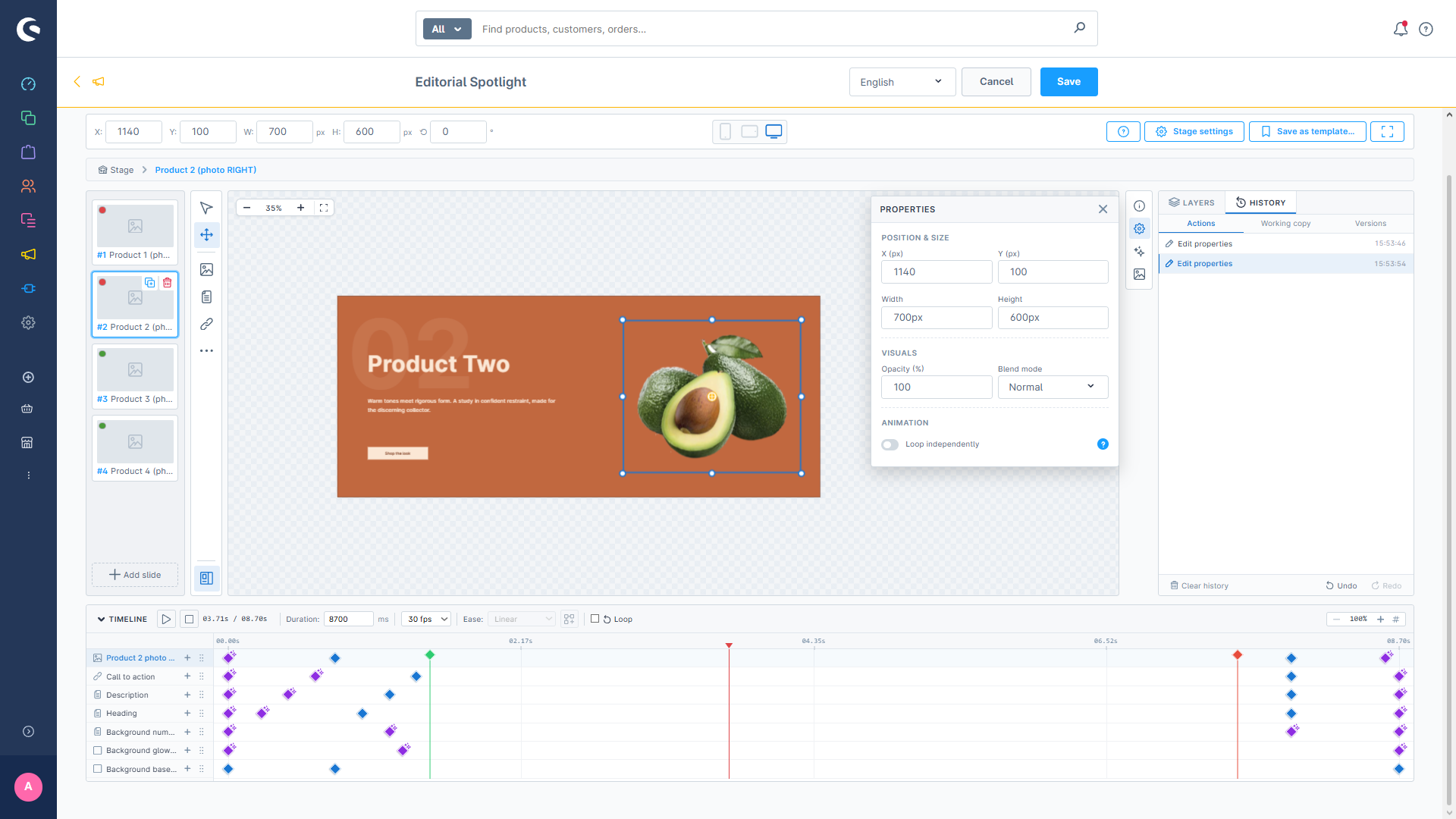
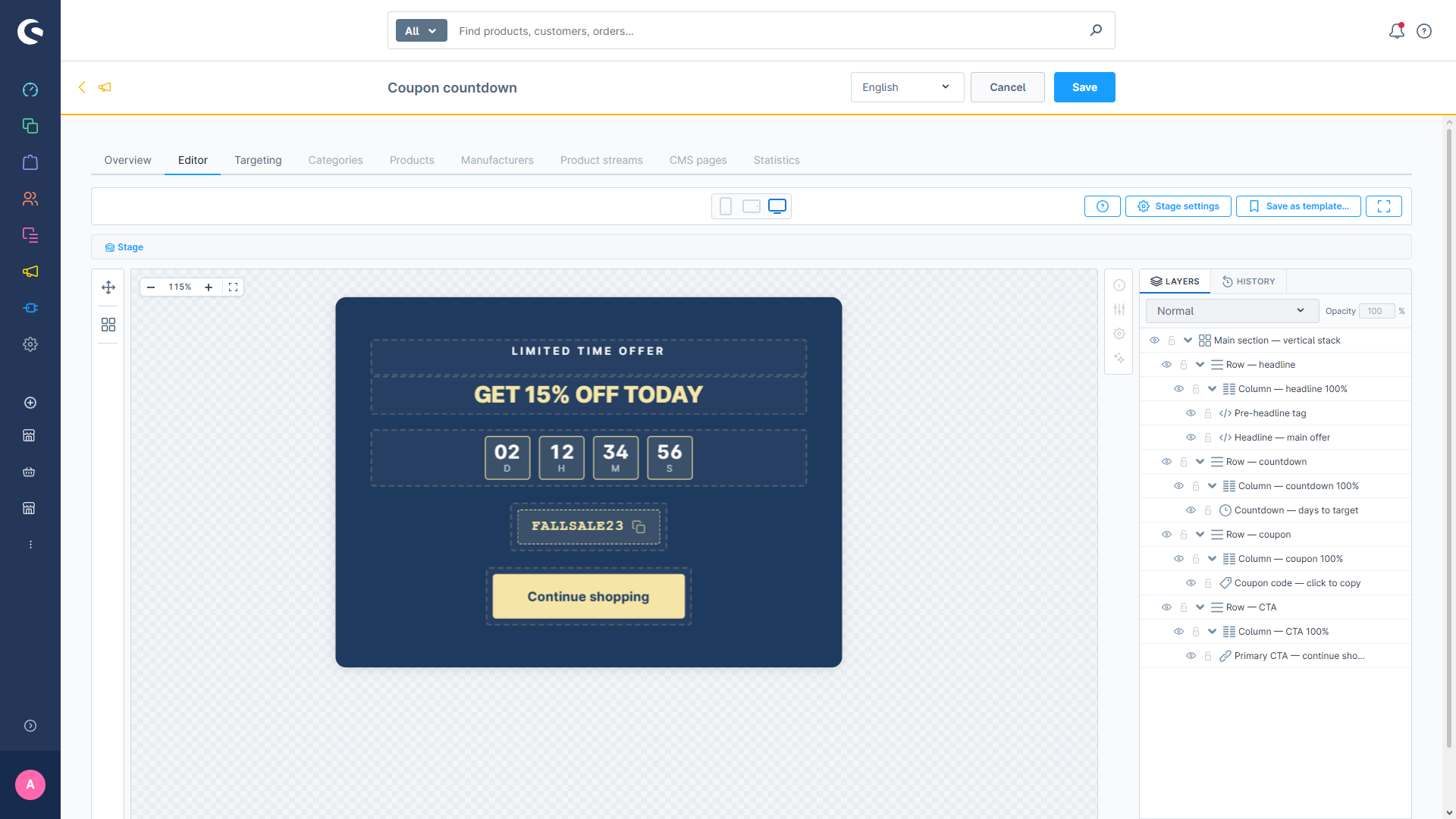
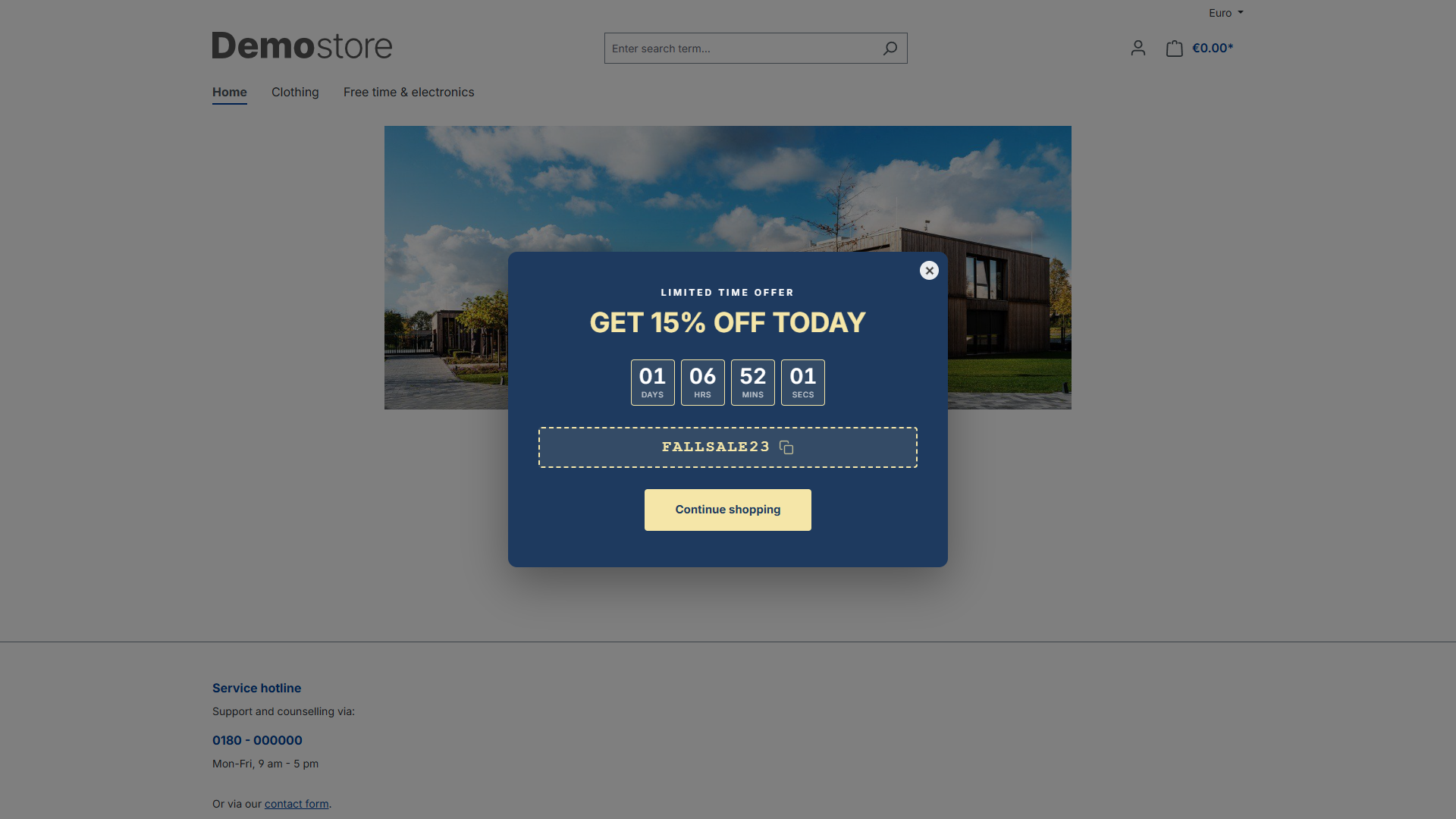
Layered canvas with image, text, button, HTML, shape, countdown and coupon layers. Drag, resize, group into scenes.
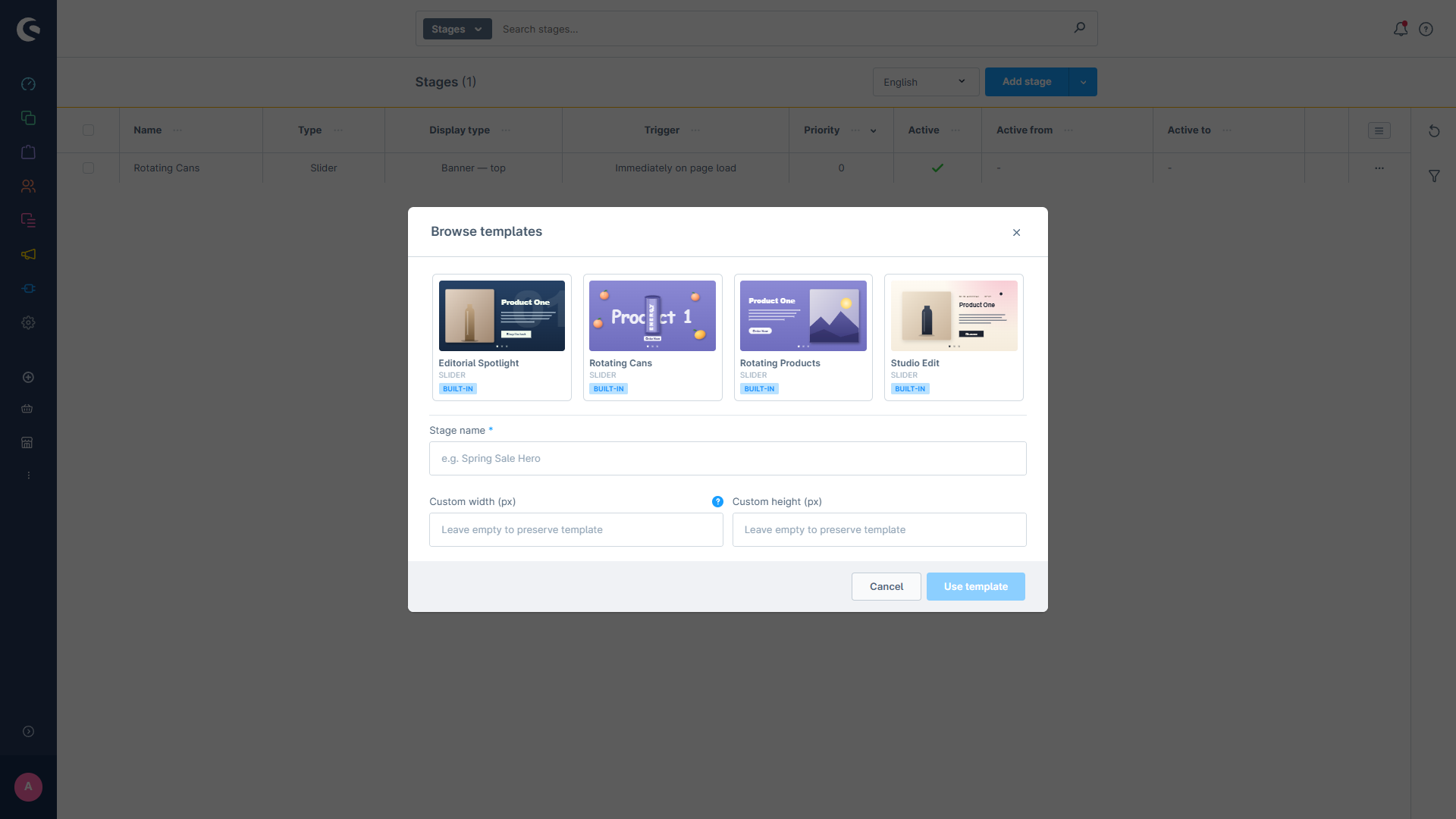
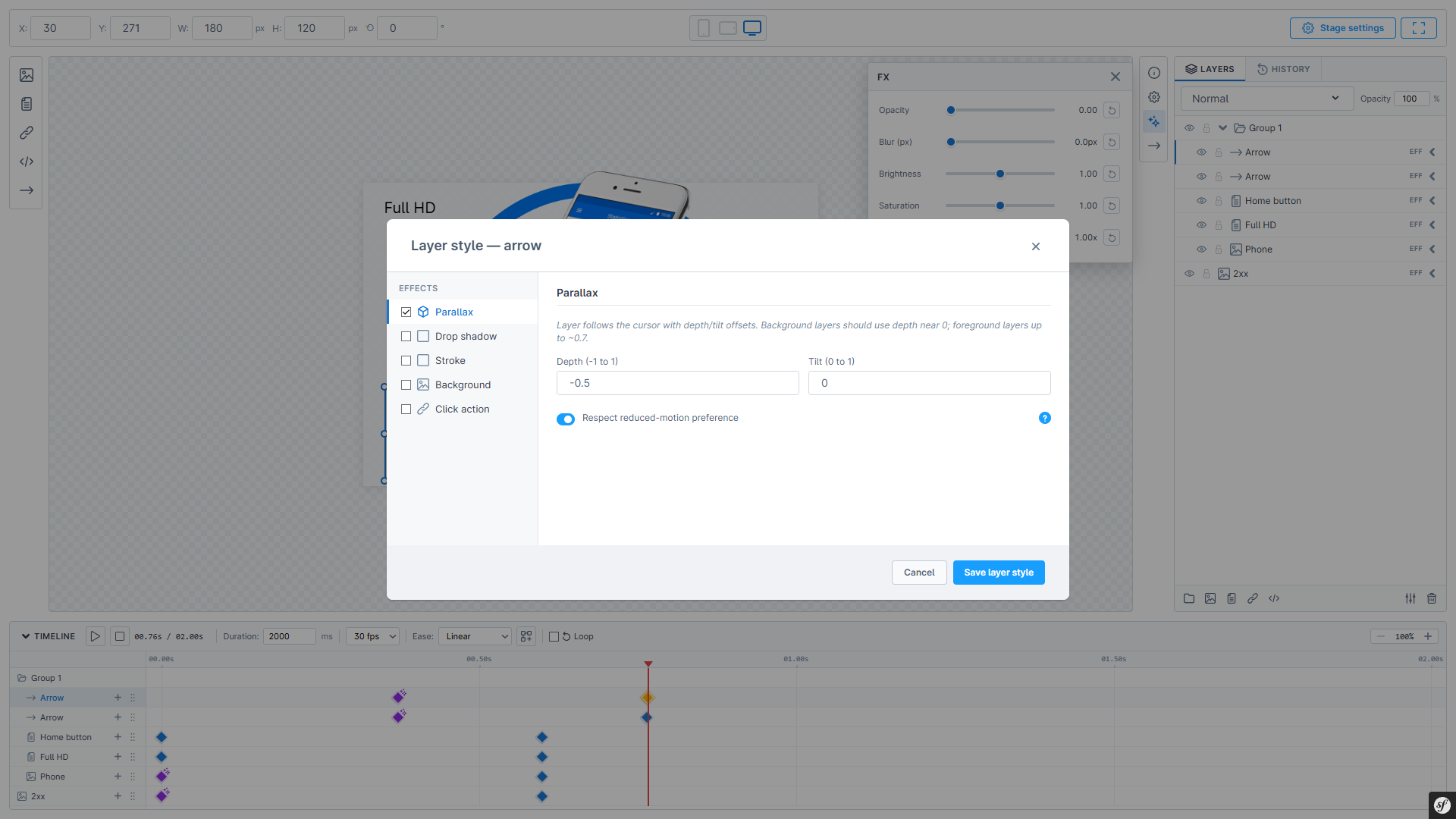
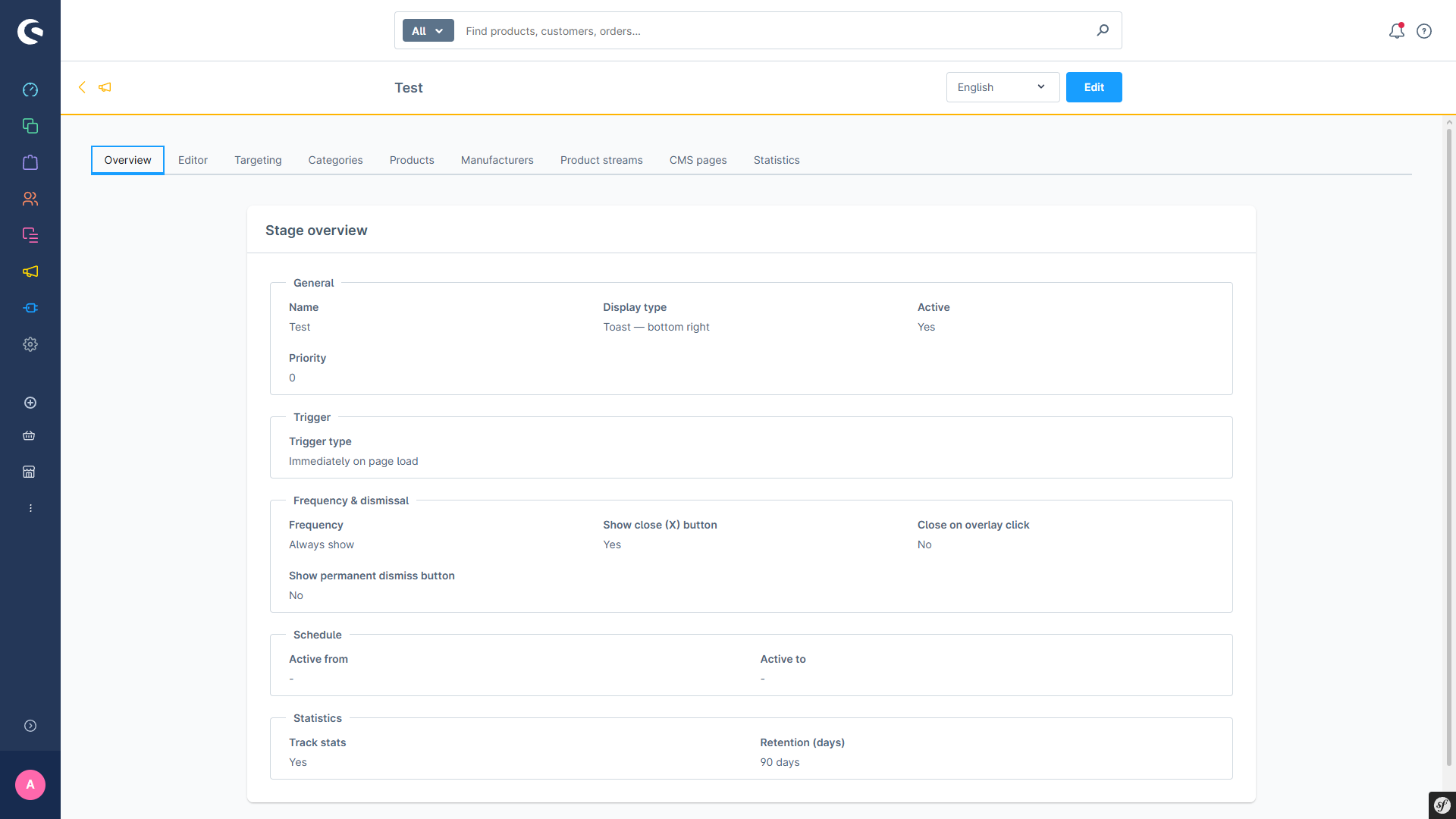
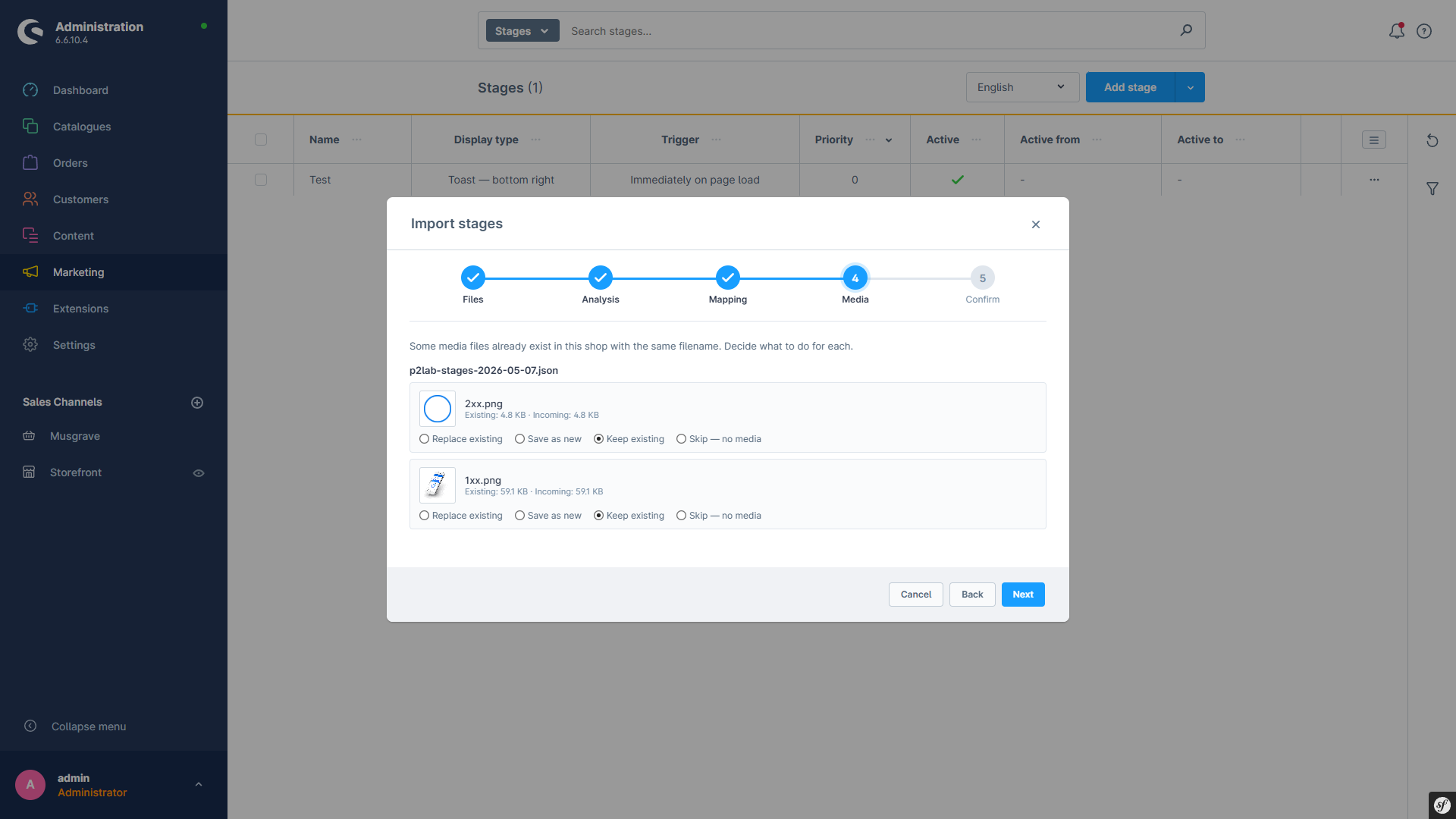
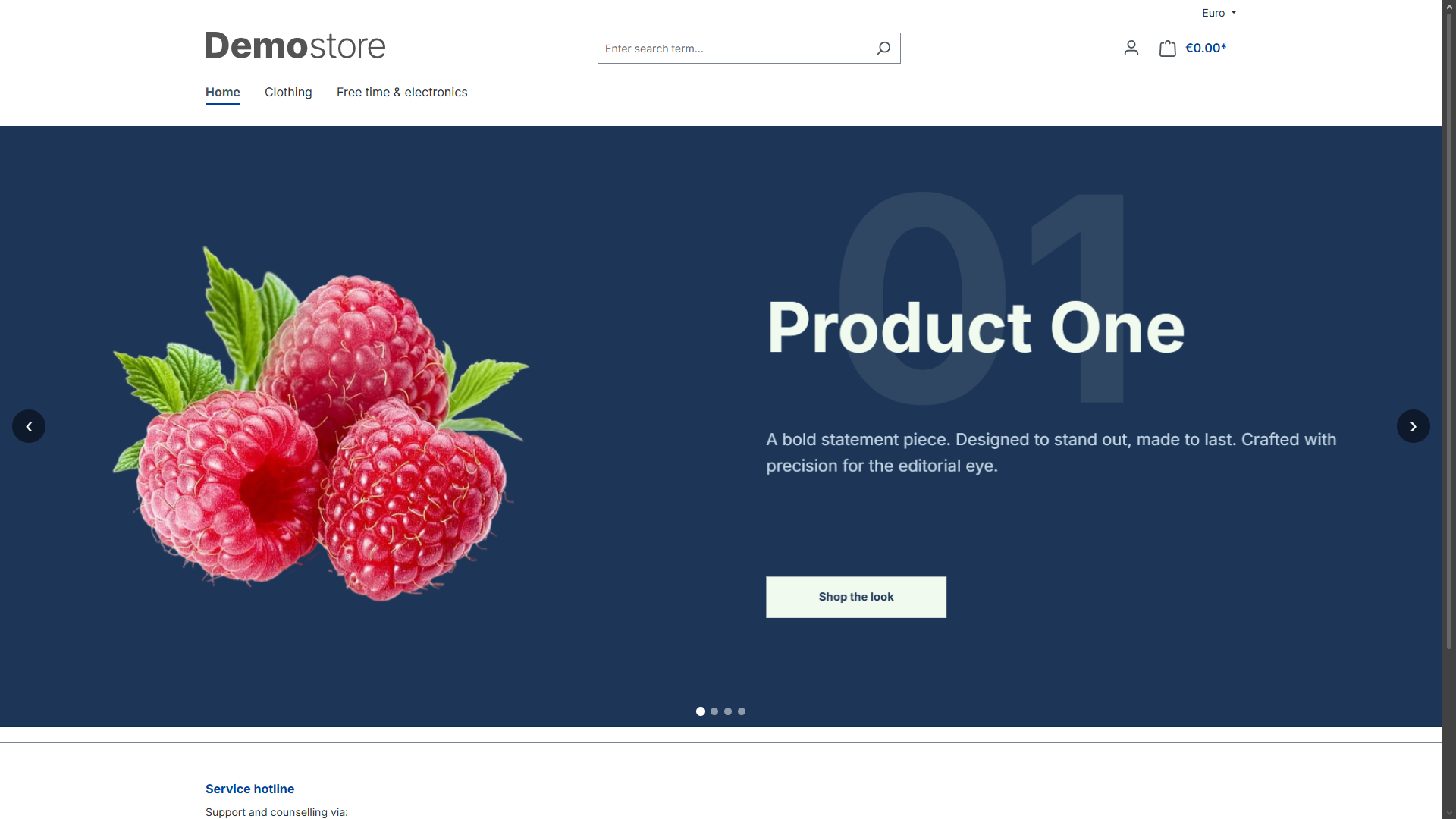
P2Lab Stage gives merchants a visual builder for promotional content in Shopware 6. Two stage types — popups (overlay / banner / slide-in / toast variants) and sliders (embedded into CMS pages) — are built from the same layered canvas, with timeline-driven animations, mouse parallax, and a versioning system that keeps every saved draft.
Design visually
Layered canvas with image, text, button, HTML, shape, countdown and coupon layers. Drag, resize, group into scenes.
Animate
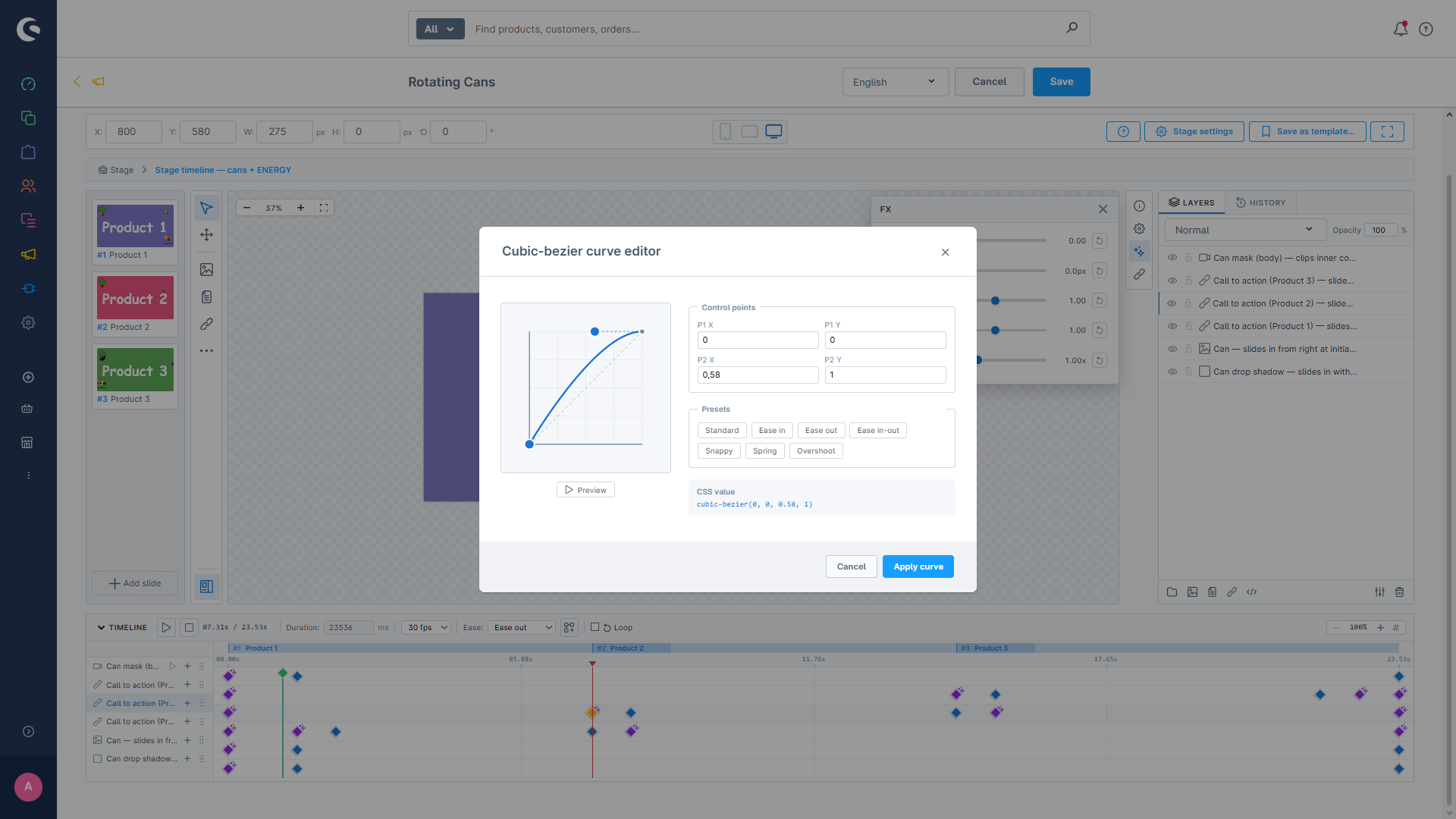
Keyframe-based animation timeline. Apply Entrance / Emphasis / Exit presets, or hand-tune motion per layer.
Target precisely
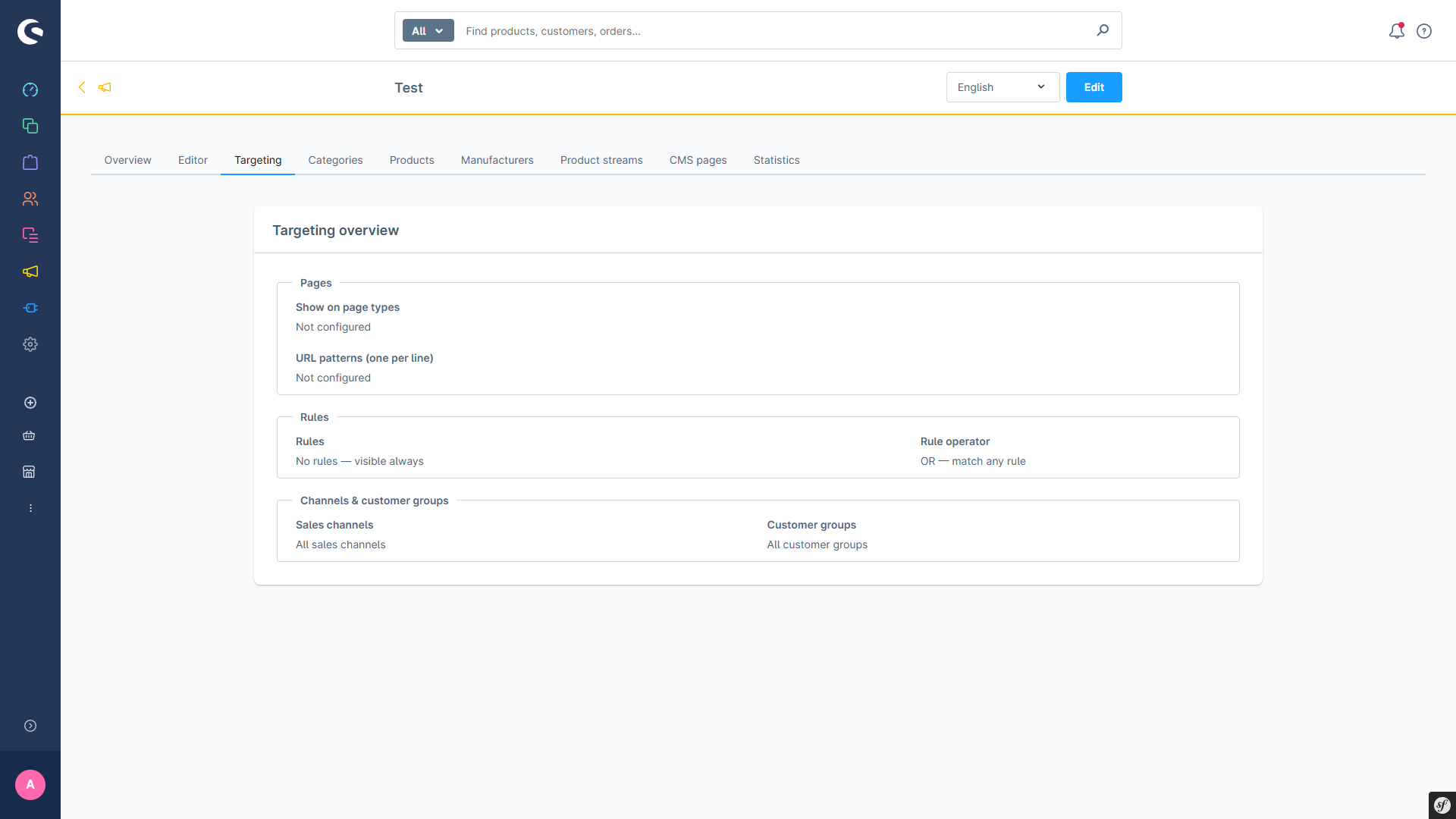
Trigger on delay or scroll. Show by sales channel, customer group, category, product, rule. Pages by type or URL pattern.
Measure
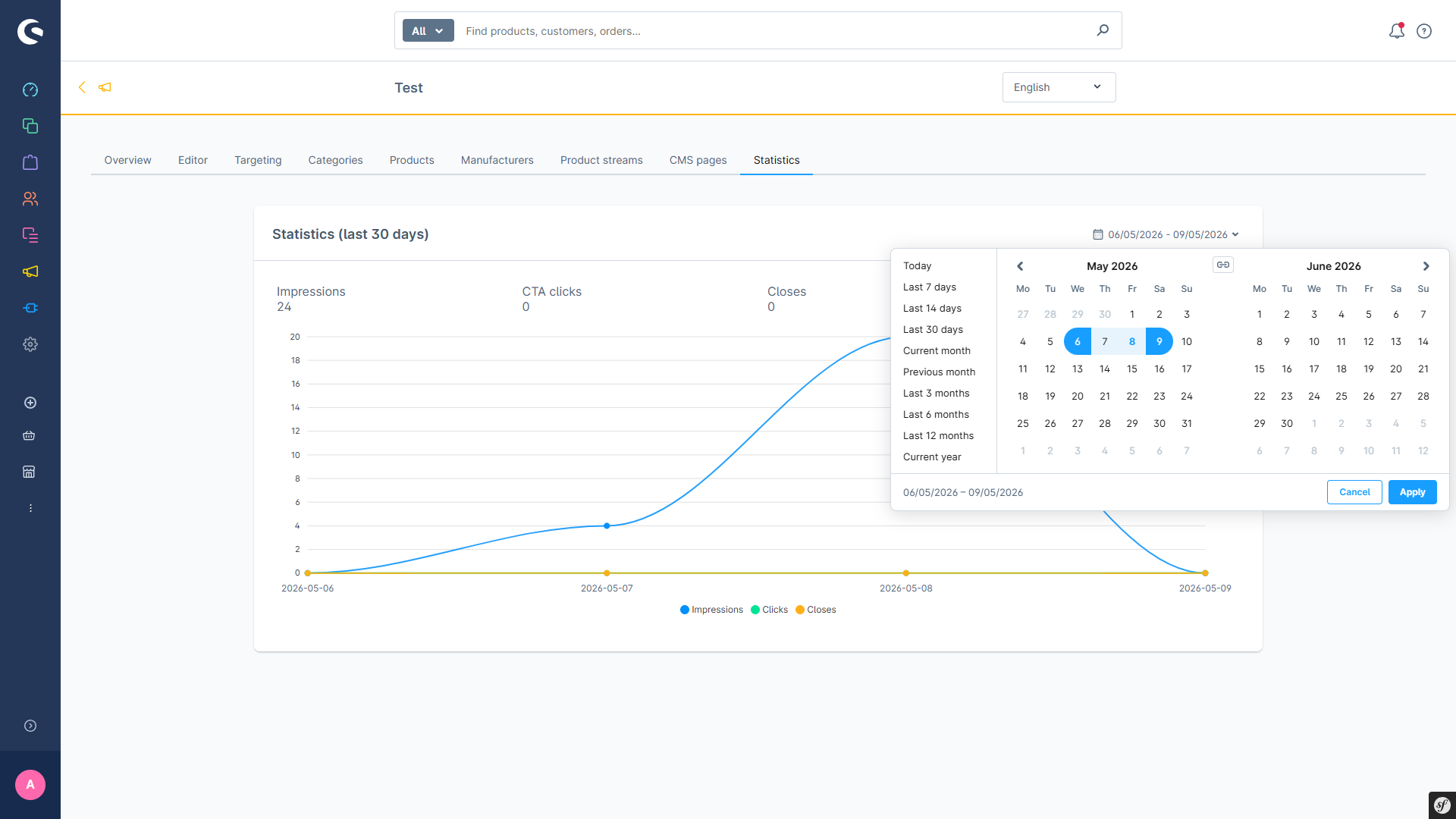
Impressions, CTA clicks, closes, permanent dismissals — all logged per stage with timeline charts and retention rules.
Every change is versioned through the draft / revision system, so you can roll back to any prior state.